
How can we help?
About Documents in Perfony
How to add documents in Perfony
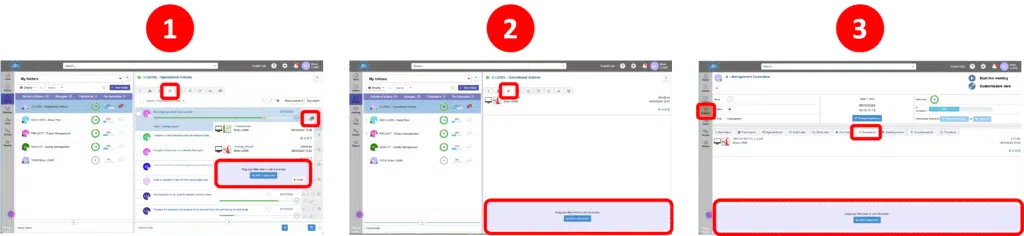
Perfony allows you to attach and share documents as attachments. You can attach a document by selecting the file from the source folder or by dragging and dropping it.
These attachments can be added to:
- An action
- A folder
- A meeting
For security reasons, the file types and sizes are limited to the most common traditional formats: .pdf, .doc, .xls, .ppt, .jpg, .png.
Precautions when adding documents
There is a document storage limit for each Perfony account. If this limit is exceeded, an error message will indicate the problem. You have several options:
- Contact the administrator of your Perfony account so that he can increase the storage capacity.
- Write to Perfony support.
- Reduce the weight of your documents by extracting them from your folders and actions.
Please note: Microsoft documents (.doc,.xls, .ppt) stored on Perfony ‘s servers are previewed by a Microsoft third-party supplier. You can prohibit its use in the third-party application settings in the enterprise settings. If you do not have access, ask the administrator of your perfony account or support@perfony.com.
Tip: We recommend connecting your Perfony account to your shared folders: OneDrive and SharePoint for Office 365 users, and Google Drive for G Suite users. This allows you to link to documents while avoiding duplicates and server clutter.
When your Perfony account is connected to OneDrive, the “Add a Document” button — whether in a meeting or a folder—opens your OneDrive directly rather than Windows File Explorer.
How It Works
From a meeting (attachment, minutes, or action plan) or from a folder, click “Add a document / from OneDrive.” A OneDrive window will open directly to the location you were last viewing. Perfony remembers the last OneDrive folder you viewed so you don’t have to search for it every time you add a document.
Select the desired document: it is attached to the meeting as a link to OneDrive, without duplicating the file on the Perfony servers (The benefits of this approach: no duplicates, no clutter in your Perfony storage space).
💡 Tip: If you regularly work on the same shared folders, the fact that Perfony remembers your last location saves you several clicks at every meeting.
If your account isn’t connected to OneDrive
The “Add Document” button will then open your computer’s file explorer, just as before. To connect your account, see the Office 365 setup instructions with your Perfony administrator.
Document Features in Perfony: The various icons displayed for each document allow you to:
- change the name.
- to substitute another document.
- delete the document.
- preview the document.