
How can we help?
View the version history of the PDF version of a meeting minutes
View the version history of the PDF version of a meeting minutes
If a meeting that has already been closed needs to be amended (e.g. a decision has been recorded incorrectly, an action has been omitted, etc.), you can reopen the meeting, edit the minutes, and then close it again to generate an updated PDF.
Reopening the meeting does not remove the previous version of the minutes: each time the meeting is closed, a new PDF file is added to the ‘Documents’ tab for that meeting, without deleting the previous ones.
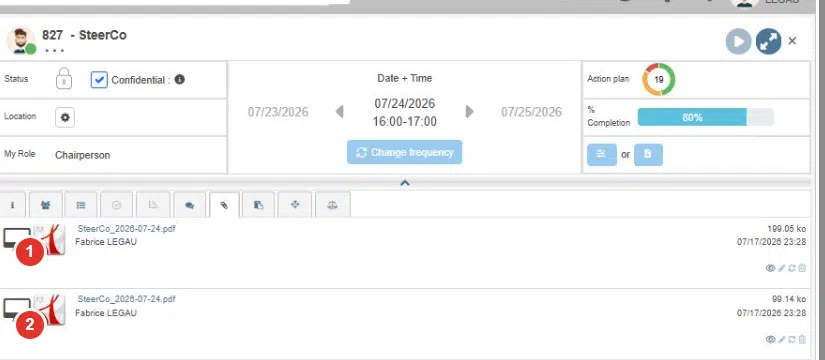
① Version generated at the time of the most recent closing (199.05 ko). ② VPrevious version, kept alongside rather than overwritten (99.14 ko).
Both files have the same name (“SteerCo_2026-07-24.pdf”) but different file sizes: each fence has generated its own version of the PDF.
What this actually means in practice
- You can keep a record of all successive versions of the official report, along with their generation dates (visible in the right-hand column of the Documents tab).
- In the event of a dispute or the need for an audit, you can reopen any previous version to compare what has changed — particularly useful for steering committees, QHSE meetings or any situation requiring document traceability.
- No further action is required on your part: this is the default behaviour whenever a meeting that has already been closed is closed again.
💡 Tip: to tell different versions apart at a glance, compare their generation date and time in the right-hand column of the Documents tab — the most recent one corresponds to the last time the report was finalised.