
Access your meetings from the “Meetings” tab in a folder
When a meeting is set up using the actions in a folder, the meeting will appear in the “Meetings” tab of that folder. Each meeting displays different information depending on its status.
Access the “Meetings” tab from a folder
- Click ” Folders ” in the left-hand menu.
- Select the folder you’re interested in.
- Click the ” Meetings” tab (1)
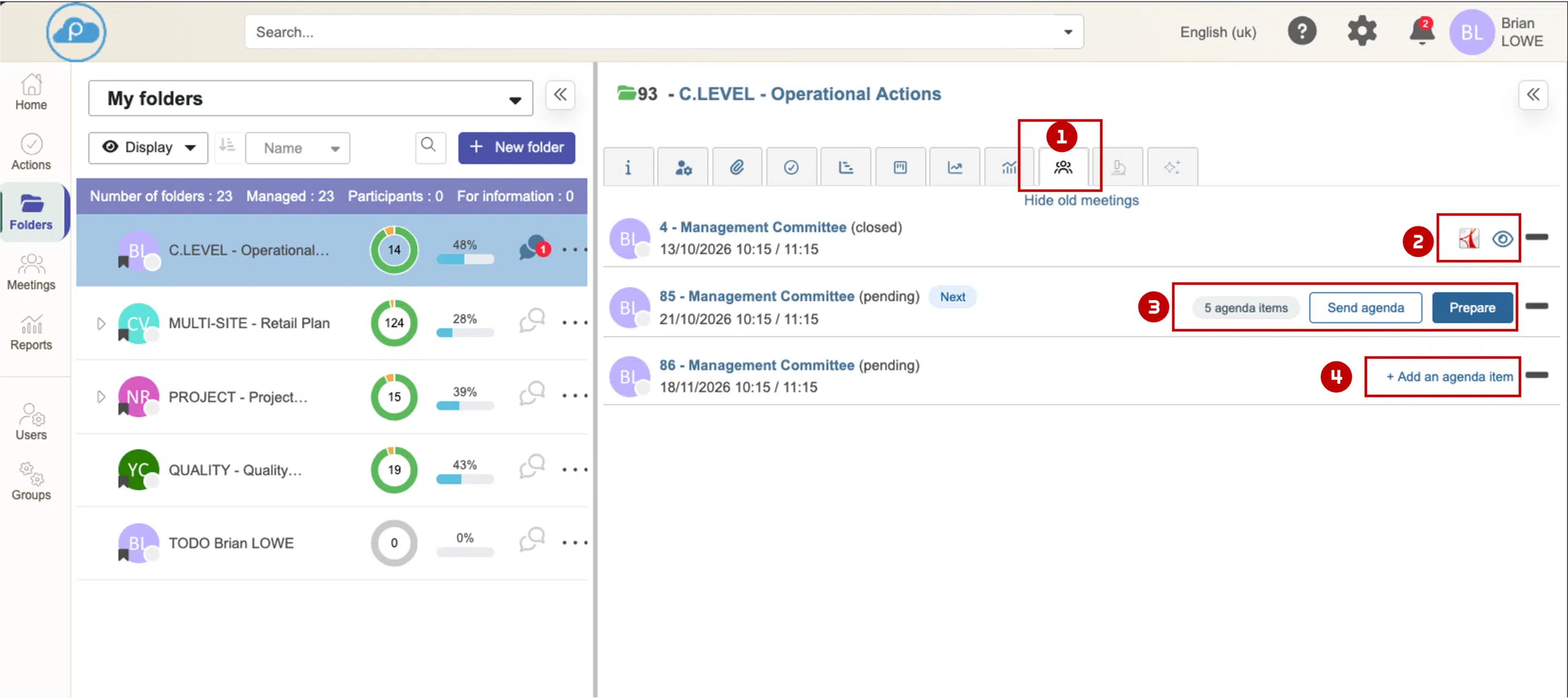
- For closed-door meetings (2), the minutes in PDF format are available by clicking on the icon.
- For the upcoming meeting (3), various commands allow you to access the agenda and meeting preparations.
- For future sessions (4), a button provides access to the agenda.
Frequently asked questions
Why does the “Prepare” button appear only for one meeting?
To keep the list easy to read, only the next meeting in the series needs to be prepared right now. For subsequent meetings, use “+ Add an item to the agenda.”
The “End Meeting” button is grayed out. What should I do?
You are neither the host nor the co-host of this meeting. Ask one of them to end the meeting, or to add you as a co-host.
A meeting doesn’t show any actions—is that normal?
Yes, if it was canceled