
Understand the error window
When an operation fails, Perfony shows a window that explains what happened and what you can do. Three cases are told apart: a technical problem, an impossible connection and a denied access.
Before you start
- Nothing to prepare: the window appears by itself, on a computer as on a phone.
Technical problem
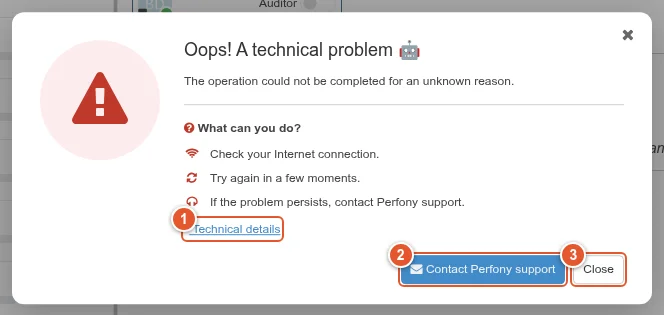
The Oops! A technical problem window says the operation could not be carried out. It suggests checking your Internet connection, trying again in a few moments, then contacting the support if the problem persists.
- Technical details unfolds the error code, the action called, the time and the name of your instance: useful when the support asks for them.
- Contact Perfony support opens your e-mail client with a prefilled message to support@perfony.com: instance, page, error code and time are already in it. Add what you were doing, then send.
- Close (or the cross, or the Escape key) closes the window.
Unable to connect
When Perfony cannot reach the server (network down, Wi-Fi lost), the Unable to connect window appears. Check your connection, then try again.
Access denied
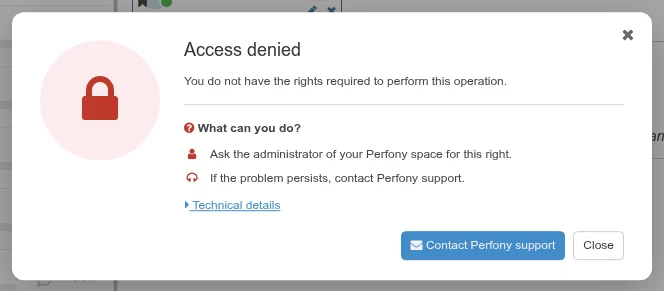
When you attempt an operation your rights do not allow, the Access denied window invites you to ask the administrator of your Perfony space for this right.
Good to know
- If your session has expired, Perfony shows “You have been disconnected!” and takes you back to the login, without this window.
- The usual Perfony messages (for instance a folder quota reached) do not go through this window.
- The mobile app shows its own error message.