
How can we help?
Use the automatic summary window
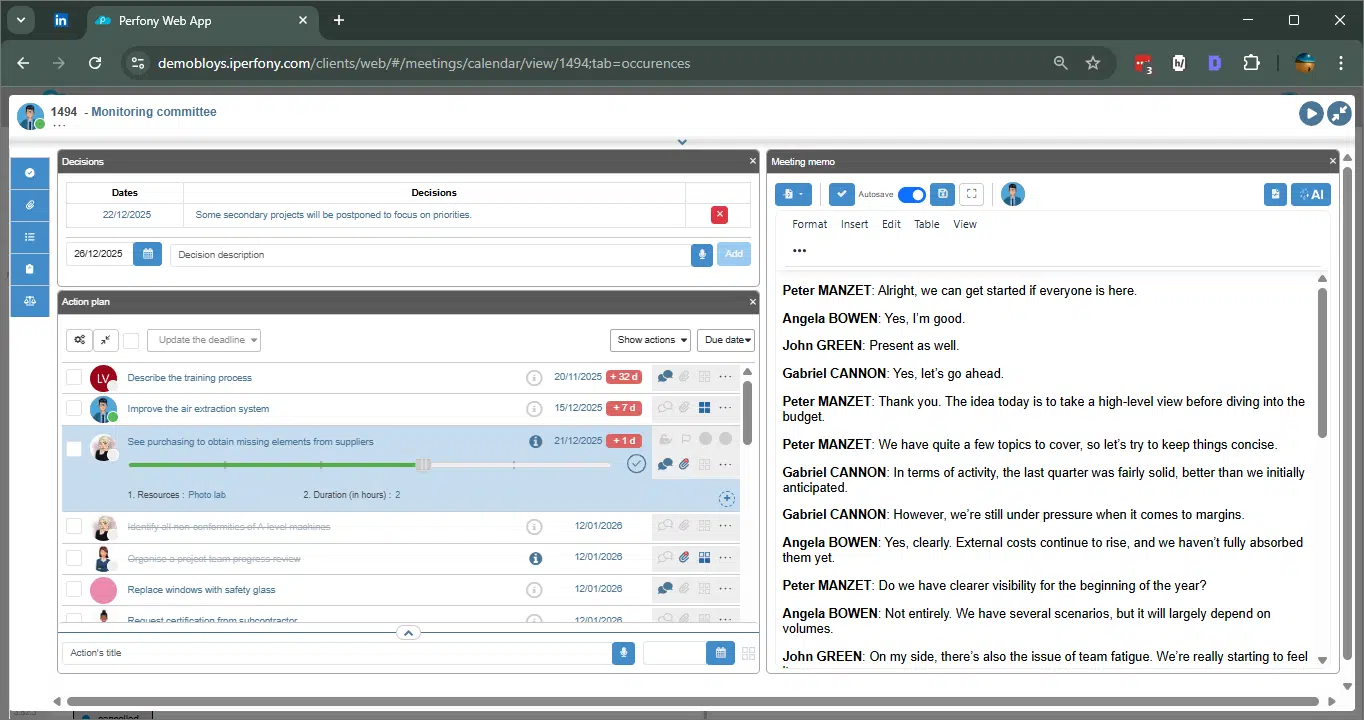
Use automatic meeting summaries
Objective
Automatic synthesis transforms a transcript, a text or your meeting notes into a structured, usable element. It allows you to synthesize text and quickly identify :
-
key information,
-
validated decisions,
-
actions to be taken,
and link them to the report for effective operational follow-up.
The four synthesis formats
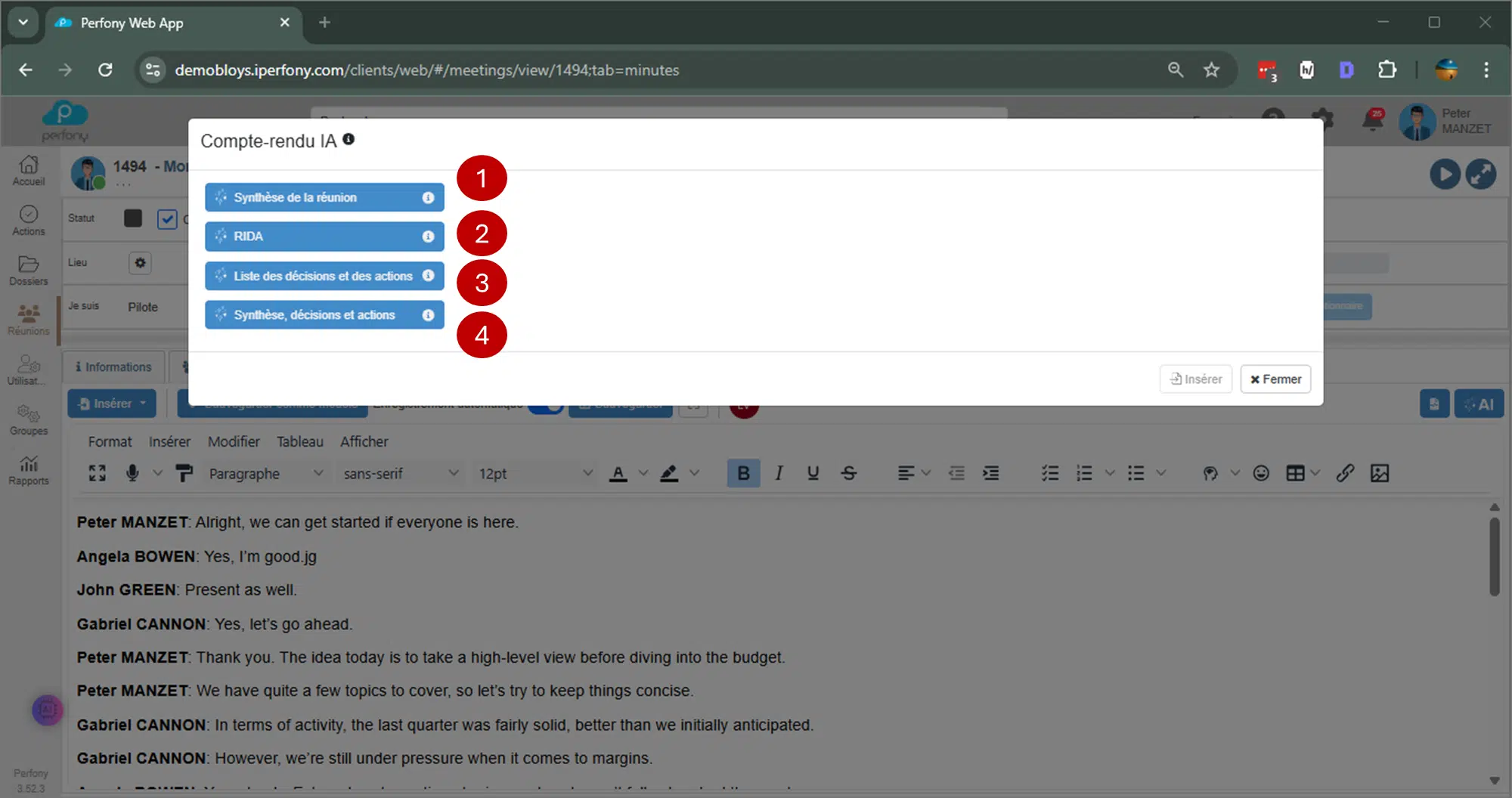
The auto-synthesis window offers four distinct formats, each with a specific role:
-
Meeting summary
-
Overall summary of key points.
-
Important: no actions or decisions are automatically identified in this format, only a summary of information.
-
-
RIDA(Results, Information, Decisions, Actions)
-
Every piece of information is captured and structured.
-
Decisions and actions can then be extracted from this information.
-
-
List of Decisions and Actions
-
Focus only on decisions made and actions to be taken, without summarizing information.
-
-
Summary and list of decisions and actions
-
Combines an overall summary of key points with all identified decisions and actions.
-
This not only gives you an accurate summary of the meeting, but also automates the creation of actions and decisions identified in the analyzed text.
-
Tip: Some meetings are best summarized concisely (Synthesis), while others require precise follow-up of actions (Decisions / Actions). Explore each format to identify the one that best suits your team and your objectives.
Information, decision, action: key distinctions
-
Information: data or observations shared during the meeting, such as a project status or an identified problem.
-
Decision: validated choice or agreed point which may lead to one or more actions.
-
Action: concrete task to be carried out, derived from a decision or information, to be assigned to a person in charge.
Clearly distinguishing between these three types of elements ensures effective monitoring and avoids confusion in reporting.
Identifying actions and decisions
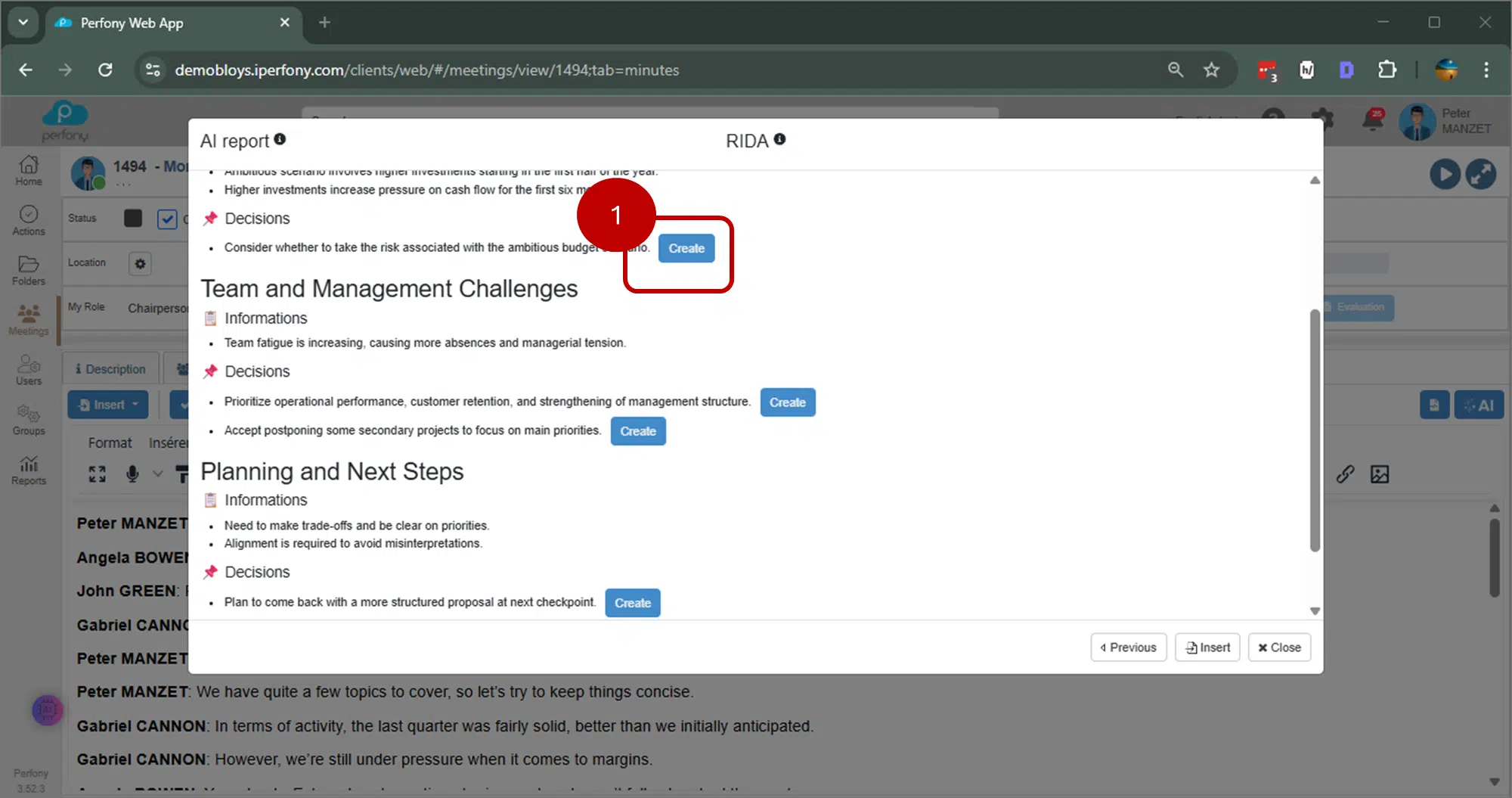
In RIDA, Decision / Action list and Synthesis, Decision / Action formats:
-
Perfony uses artificial intelligence to automatically identify decisions and actions.
-
Each detected line can be transformed directly :
-
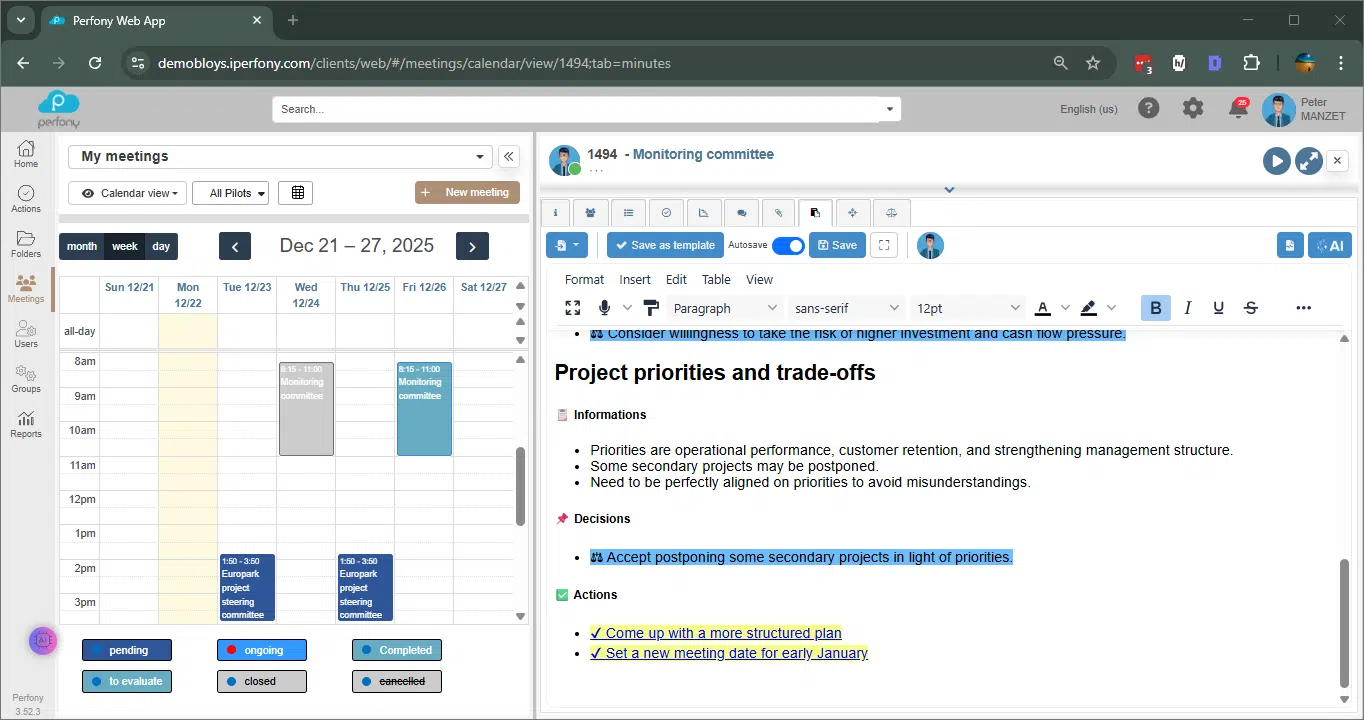
Action: added to the action plan and highlighted in the minutes (underlined).
-
Decision: added to the record of meeting decisions and included in the minutes (underlining).
-
Practical tip: reread and adjust the suggested elements to clarify responsibilities and prioritize actions.
Using automatic synthesis
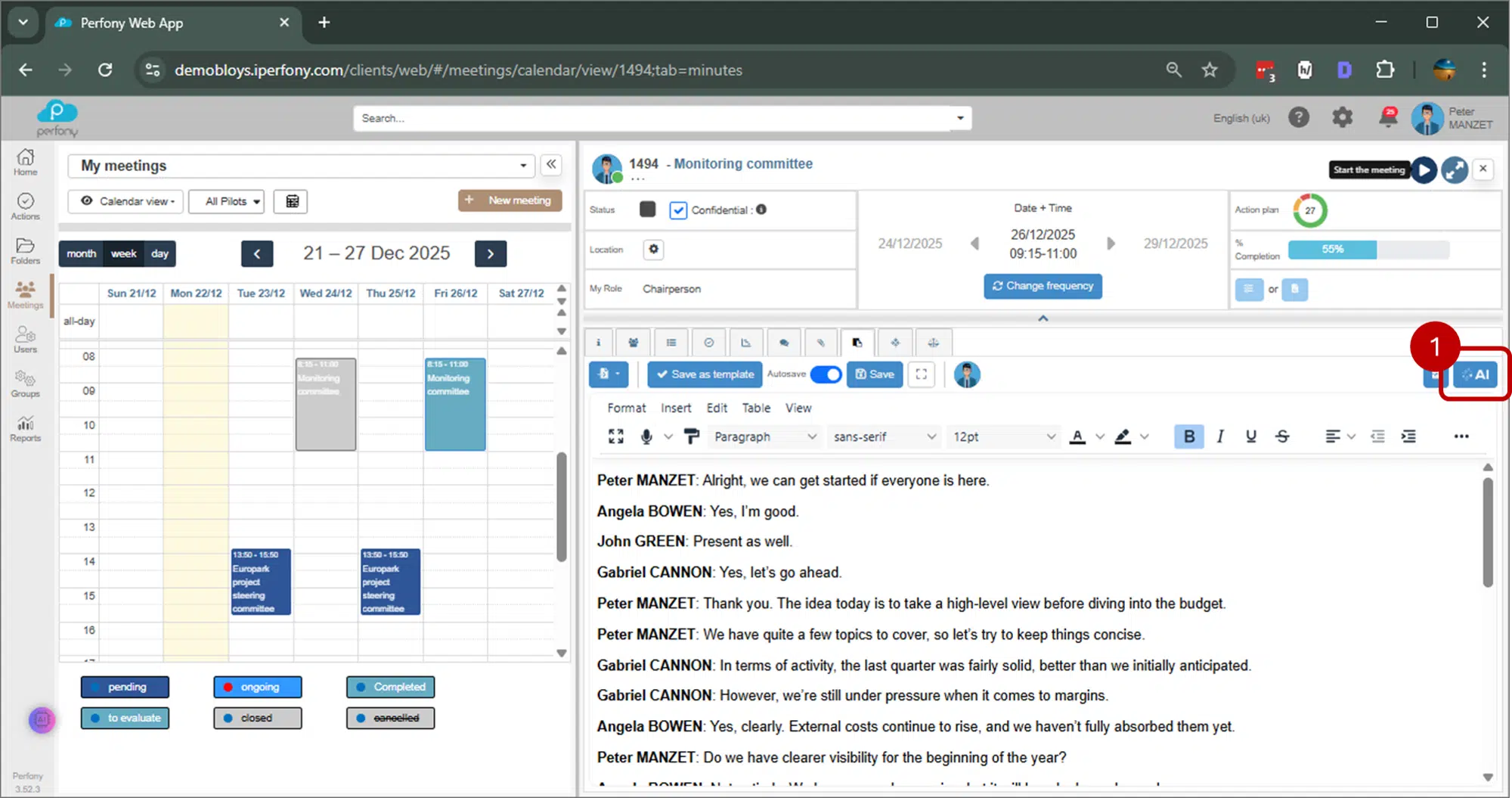
You can click on the IA icon at any time (1) to generate a summary from the text entered in the Minutes tab.
Once your notes have been taken or the transcript completed, the summary can be produced during the meeting (status In progress) or afterwards, as long as the meeting in Perfony has not been closed.
Note: the IA icon is no longer available when the meeting status changes to Closed.
1.Open the IA tab,
Click on the “AI” icon in the meeting interface (1).
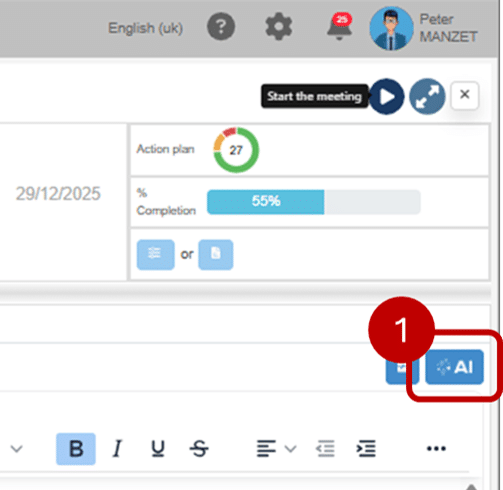
:
The automatic synthesis window opens, displaying the four available formats.
2. Choose one of the 4 synthesis models,
the one you wish to obtain:
- Summary only: Summary of the meeting, without identification of actions or decisions.
- RIDA – Information, actions and decisions: Identification of all relevant information, as well as actions and/or decisions based on it.
- List of actions and decisions:List of actions and decisions identified during the meeting.
- Summary and list of actions and decisions: Overall summary of the meeting, with actions and decisions identified.
With the exception of the“Synthesis only” model, the other three synthesis formats offer the possibility, for each action or decision identified, to directly create the corresponding element in Perfony, thus facilitating operational follow-up after the meeting.
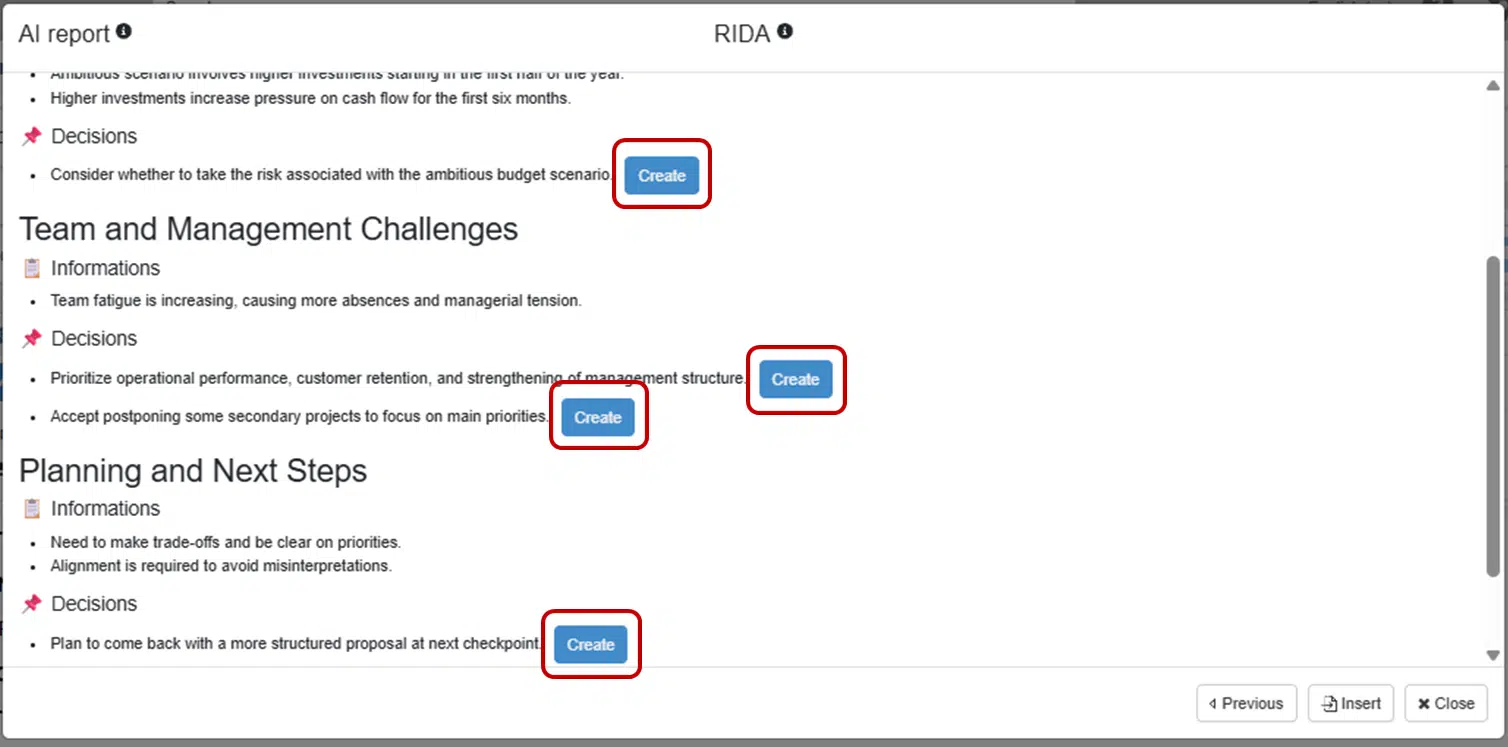
3. Create an action and a decision
As you browse the list of actions and decisions identified by the AI, you have several options:
Option 1: Do nothing
When you close the window, all the text will be inserted into the minutes. Actions or decisions will be recorded in the minutes, but not created in Perfony.
Option 2: Create an action
1. Click on the “Create” icon to add the action to the action plan attached to the meeting.
The action creation window opens. Please check the important elements before confirming:
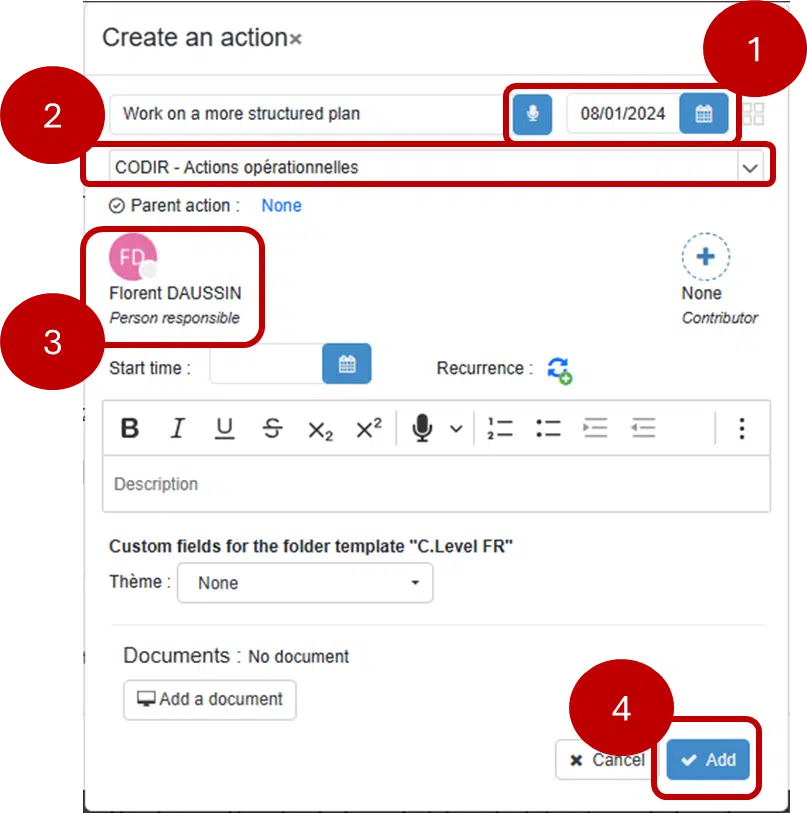
Action deadline (1) The date, if given, is automatically taken over at the time of creation.
Origin folder (2) Check that the action has been created in the desired folder. To change the origin, click on the folder name and select another folder.
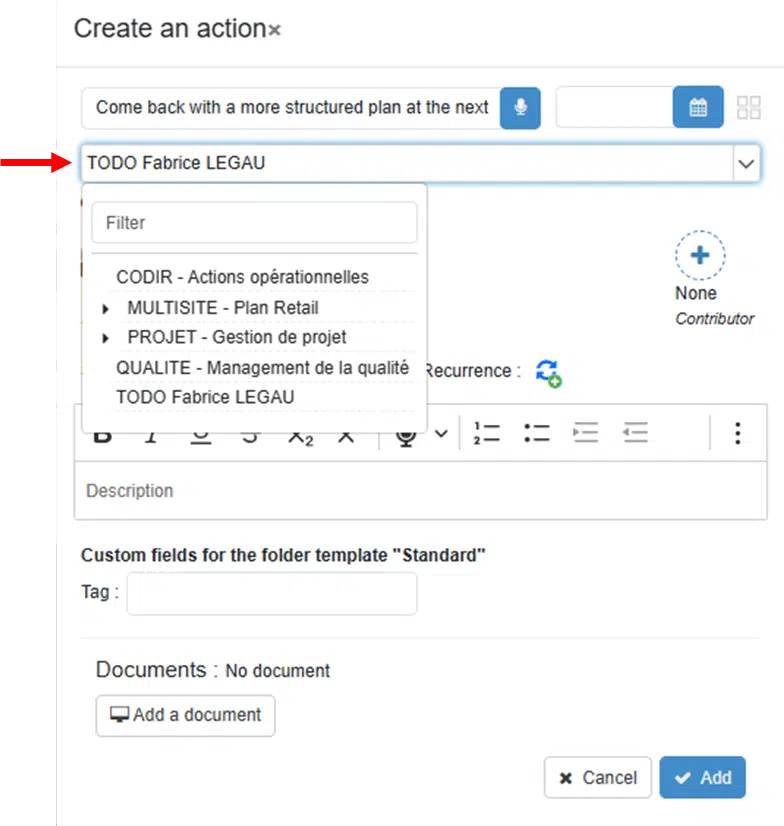
Responsible person (3) The AI identifies the responsible person if one is specified; you are automatically designated responsible for the action if nothing is mentioned in your text. To change the person responsible for the action, simply click on the name icon and select another person.
Note: The drop-down list of managers depends on the participants present in the selected folder.
2. Click on “to create to create the action (4), or on “Cancel to do nothing. In the first case, the action is added to the action plan and highlighted in the minutes (underlining).
If you wish to change the deadline or progress of an action, for example, simply click on it directly in the CR to modify it.
Option 3: Create a decision
Click on the “Create” icon to add the decision to the decision management tab.
-
The decision is created automatically.
-
As with the action, it will be highlightedin the minutes.
-
You can also modify it directly from the minutes by clicking on it.
4. Click on “Insert” to close the window.
Items are added to the meeting minutes. You can :
-
modify or complete the text,
-
adjust actions or decisions directly from the CR.
Practical tips:
-
Validate consistency between decisions and actions before distribution.
-
When completing the deadline, remember to prioritize actions according to their n urgency and importance.
-
Clearly assign responsibilities for effective follow-up.
Import an existing file (VTT or MP4)
Perfony can also generate a synthesis from existing files:
-
VTT: Teams subtitles or other videoconferencing tools,
-
MP4: video file with audio track.
Import transforms these files into usable transcriptionready to be analyzed by the automatic synthesis.
Best practices
-
Check that each intervention is correctly assigned before summarizing.
-
Explore the four formats to choose the one best suited to your meeting.
-
Modify or complete actions directly in the report to ensure accuracy and traceability
Summary
Perfony’s automatic synthesis window transforms the transcript or your notes into a structured, usable management tool.
-
The summary function generates a synthetic summary.
-
The RIDA captures information and translates it into actions and decisions.
-
The list of decisions and actions focuses on what needs to be monitored.
-
Summary and list of decisions and actions combines summary and operational follow-up of actions and decisions.
Perfony particularly recommends RIDA, even from simple notes, for structured, clear and immediately actionable follow-up.
Category: Meetings & AI
Subcategory: Automatic synthesis
Tags: Automatic synthesis, Actions, Decisions, Minutes, Productivity, Organization
To find out more, consult the articles dedicated to transcription in Perfony, or on theuse of identified decisions and actions, which provide details on how to set up and use it in your meeting reports.