
Customize my Kanban view
There are several ways to customize how your tasks are displayed in the Kanban view.
- Customize the Column Order
- Filter actions by manager
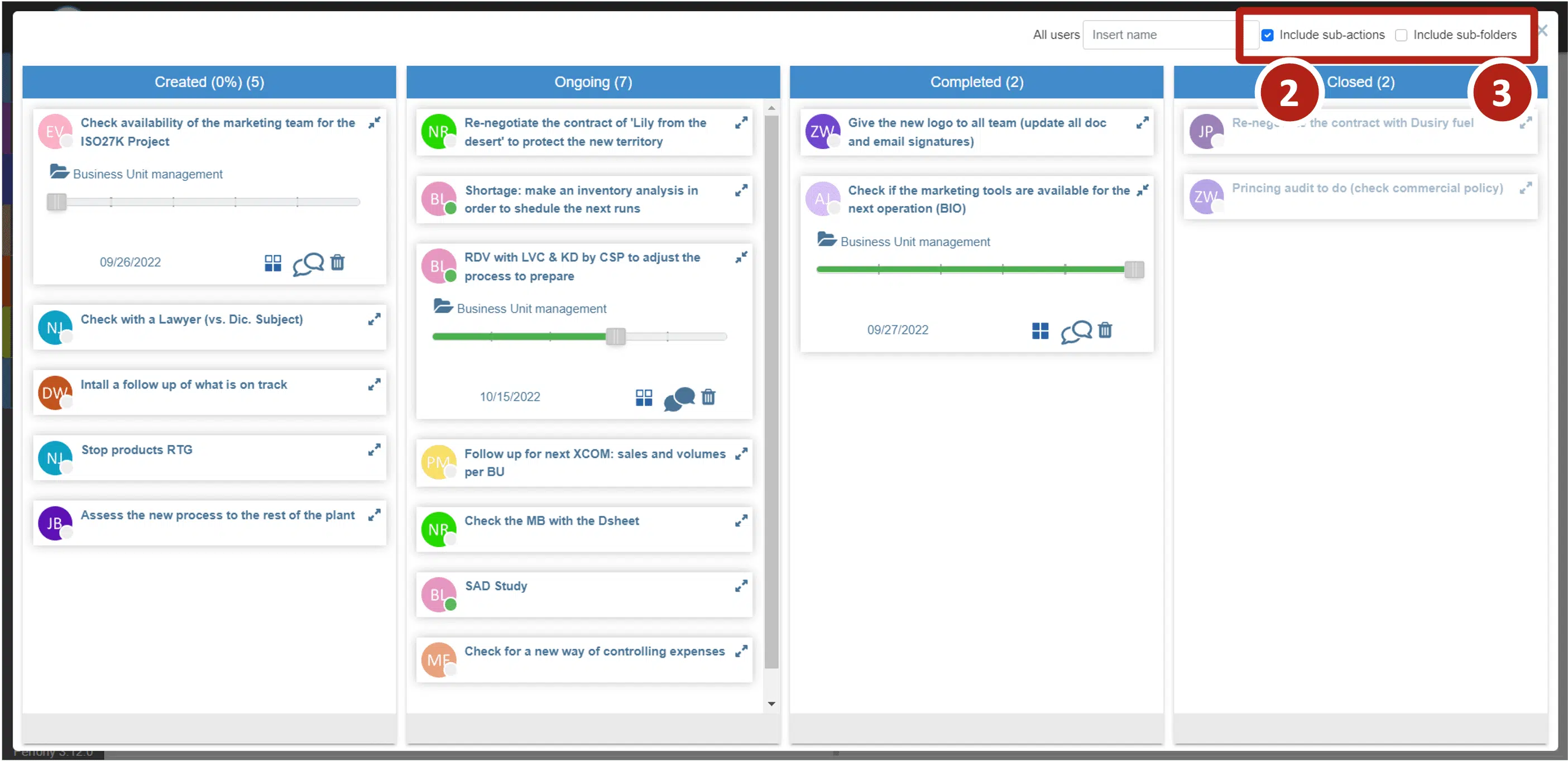
- Show/hide sub-actions
- Display the “Kanban” in an expanded view
- Zoom in or out on the action maps
- Color-code the action cards
Customize the Column Order
By default, actions are sorted as follows:
- shares issued
- ongoing actions
- Completed Actions
- closed trades
However, you can change the order by using “drag and drop” on the blue bar at the top of each column.
Color-coding Kanban cards
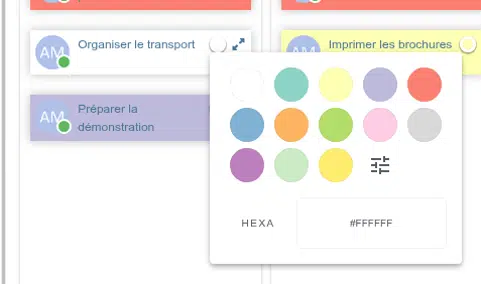
A color on a map lets you identify a trending topic, a theme, or a client at a glance. You’re free to choose any color: you can select it from a palette or create it yourself.
Before You Begin
- To change the color of a card, you must have permission to edit the action.
- The color is shared: everyone who views the action in a Kanban board sees the same color.
Choose a color
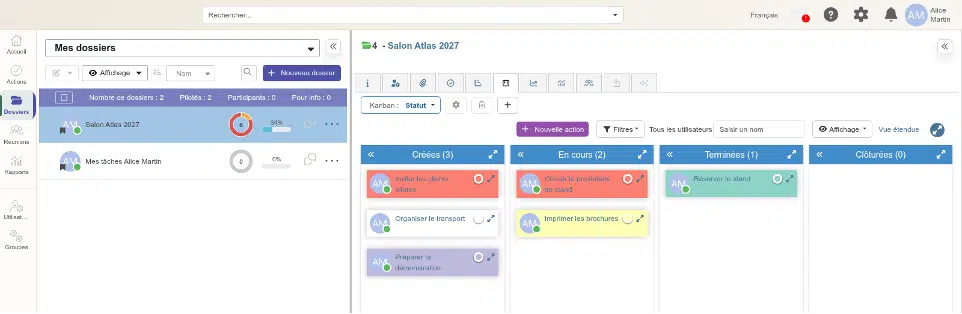
- Open a Kanban board: either a folder’s Kanban board ( Kanban View tab) or the ” My Actions” Kanban board.
- Click the round button in the upper-right corner of the map (“Change Map Color”).
- Select a color from the palette. The adjustment button to the right of the last row lets you create a different color or enter its code.
The card changes color immediately; the text turns white on dark backgrounds to remain legible.
Remove the color
Open the palette and select white (the first swatch): the card will return to its original colorless state.
Good to Know
- The color appears only in the kanbans, not in the action lists.
- The color corresponds to the action: it is the same in all kanbans where the action appears.
Filter actions by manager
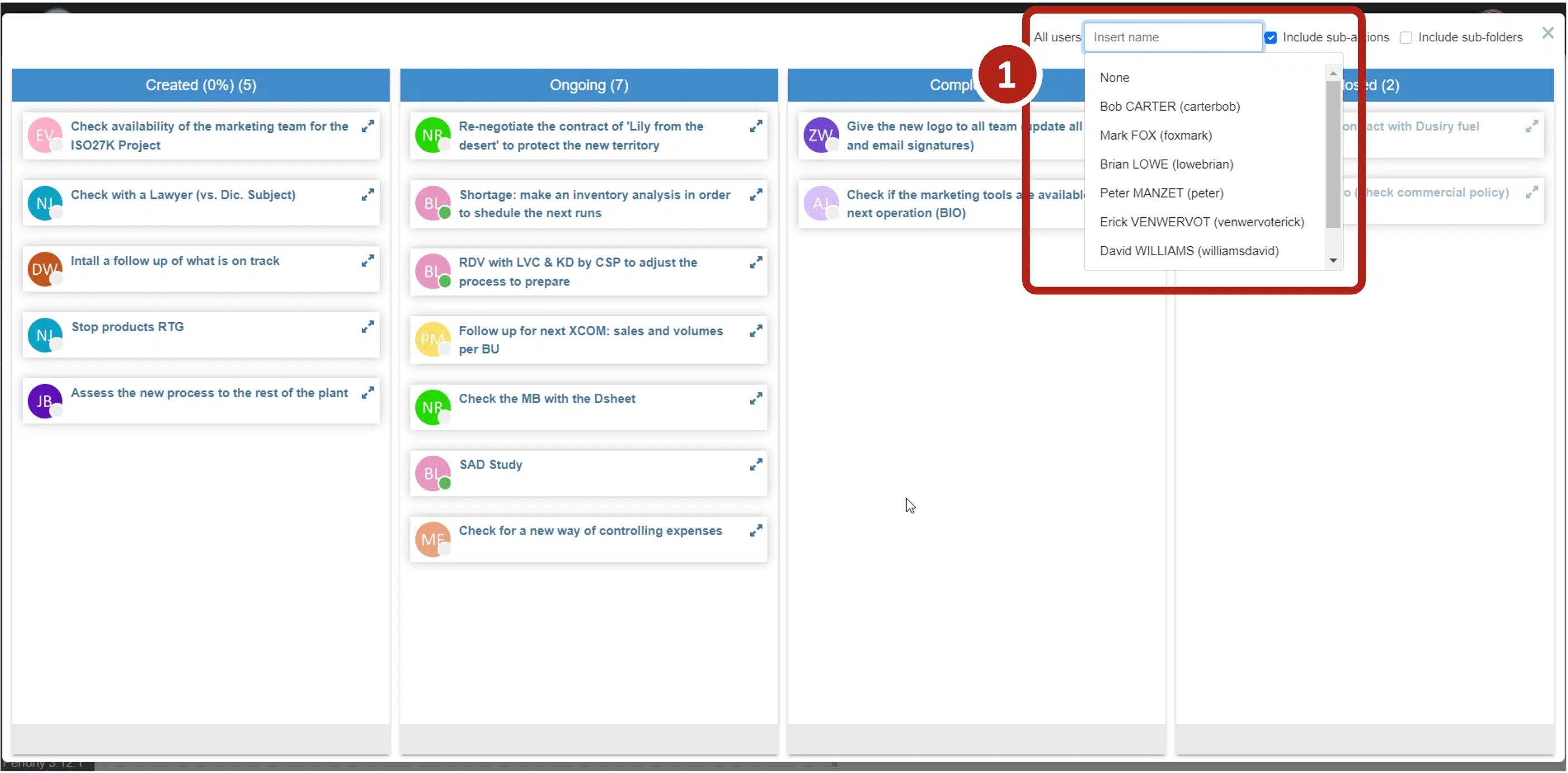
You can also choose to display only the actions of certain managers to streamline the view.
Use the ” ” filter field and enter the name of the person whose actions you want to view.
You can view the actions of multiple managers.
Afficher les sous-actions et les actions des sous-dossiers
Switch to expanded view
Depending on the size of your screen, the Kanban dashboard may be easier to use in “full-screen” mode.
From the Kanban tab in your folder, click the expand icon to switch to an expanded view that will take up the entire browser page.
Clicking the close button will take you back to your folder.
Minimize or expand an action card
By default, when your Kanban dashboard loads, only the action labels and the avatars of the people responsible for them appear on the cards.
However, additional details can be displayed:
- The Affiliation File
- Completion Status (Editable)
- Due date (editable)
- Priority (editable)
- The icon for accessing comment threads (active)
- The action delete icon (active)
Click the icon to show or hide this information.