
Setting up artificial intelligence
Perfony offers several artificial intelligence features: minutes summaries, the AI widget of the home page, the folder AI analysis, dictation and meeting transcription, decision and action detection. As an administrator, you choose the ones your organisation uses. If your organisation has its own Microsoft Azure subscription, you can also route generative AI and speech recognition through it: your content is then processed in your subscription, and usage is no longer limited by Perfony’s monthly quota.
Before you start
- You must be an administrator of the Perfony instance.
- To use your own subscription: the address of your Azure OpenAI resource (of the form https://….openai.azure.com/), the deployment name and an API key; for speech recognition, the region and a key of your Azure Speech resource. Your IT department finds them in the Azure portal.
Opening the settings
- Click the gear wheel at the top right.
- Choose Company settings.
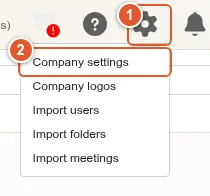
Switching AI features on or off
Find the Third-party software: artificial intelligence card, right after the Third-party software card.
- The Artificial intelligence features switch turns all AI on or off at once.
- Each service has its own switch: Generative AI (minutes summaries, AI widget of the home page, folder AI analysis), speech recognition (dictation, transcription) and decision and action detection.
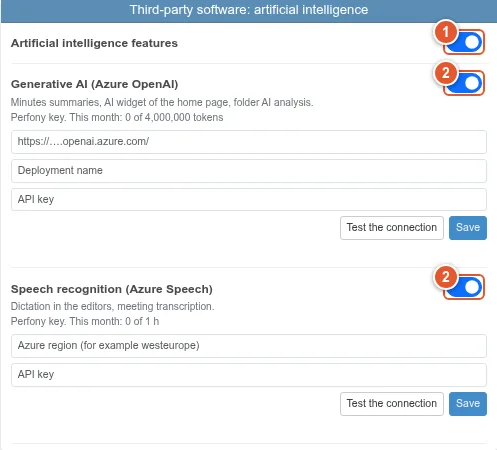
A feature that is switched off disappears from every user’s screen as soon as they reload Perfony. Under each service, the card shows the usage of the month and the quota.
Using your organisation’s Azure subscription
In the Generative AI (Azure OpenAI) block:
- Enter the address of your Azure OpenAI resource.
- Enter the deployment name.
- Enter the API key.
- Click Test the connection: Perfony checks that the resource answers.
- Click Save. The connection is tested again, and nothing is saved if it fails.
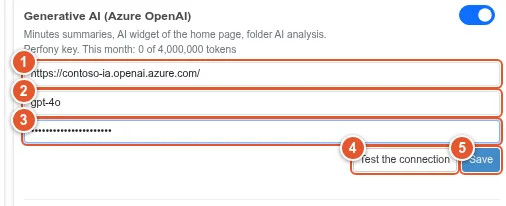
Once the key is saved, the card shows Your organization’s key, no Perfony quota. For speech recognition, do the same with the region and the key of your Azure Speech resource. To go back to the key provided by Perfony, click Back to the Perfony key.
Good to know
- The key is never displayed again after it is saved: only its last four characters are shown. To change it, enter the new one and save. Leaving the field empty keeps the saved key.
- If your key stops working (key renewed or resource deleted in Azure), Perfony shows an error message to the users and does not fall back on its own key: remember to update the key in the card.
- With the key provided by Perfony, usage is limited by a monthly quota, reset on the 1st of each month. When it is reached, the feature is unavailable until the next month.
- Decision and action detection relies on a model trained by Perfony: it only has a switch, with no key of your organisation.
- A greyed-out service with the message “Not enabled for your instance” must first be enabled by the Perfony team: contact support.