
Show your Perfony meetings in your calendar
Your Perfony meetings and actions can appear in your usual calendar. There are two ways: the read-only ICS link subscription, for Outlook or Google Calendar; and CalDAV synchronization, for a calendar client such as Thunderbird, macOS Calendar or DAVx5. The Perfony CalDAV server asks for your Perfony e-mail and password: nobody can read or change your calendar without them.
Before you start
- The ICS link is personal: it gives access to your calendar without a password. Do not share it.
- CalDAV needs a Perfony password. Accounts whose domain is reserved for Microsoft or Google sign-in only have the ICS link.
Copying your ICS link
- Open the Meetings menu.
- Click the Copy ICS link button, to the right of the filters. The link is copied to the clipboard.
- In Outlook or Google Calendar, subscribe to an Internet calendar by pasting this link.

In Outlook
- Open Outlook.com and go to your calendar.
- Click Add calendar, then From the Internet.
- Paste the ICS link, save, then rename the calendar if you wish.
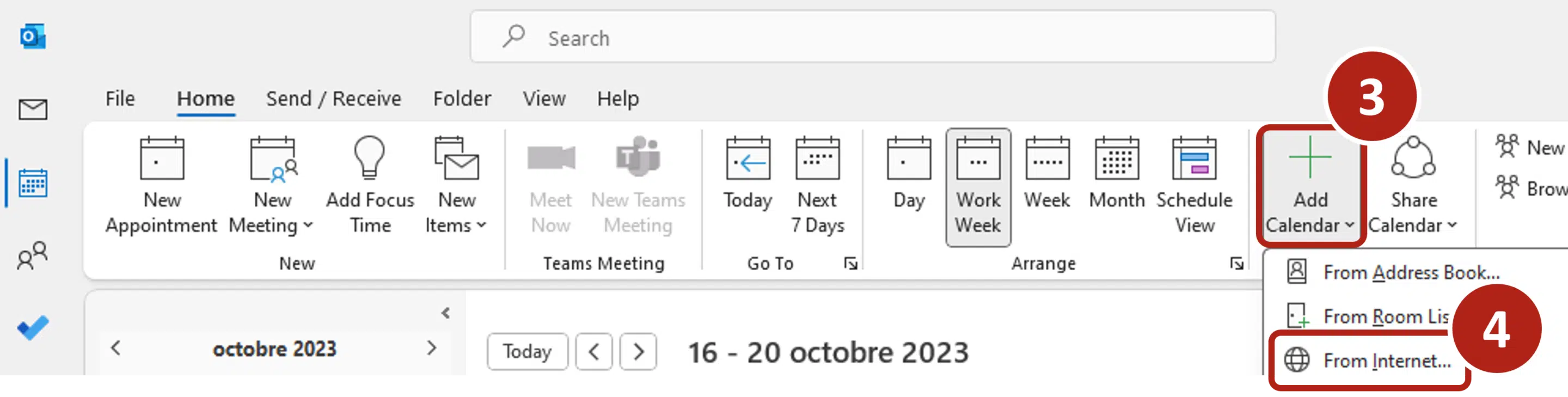
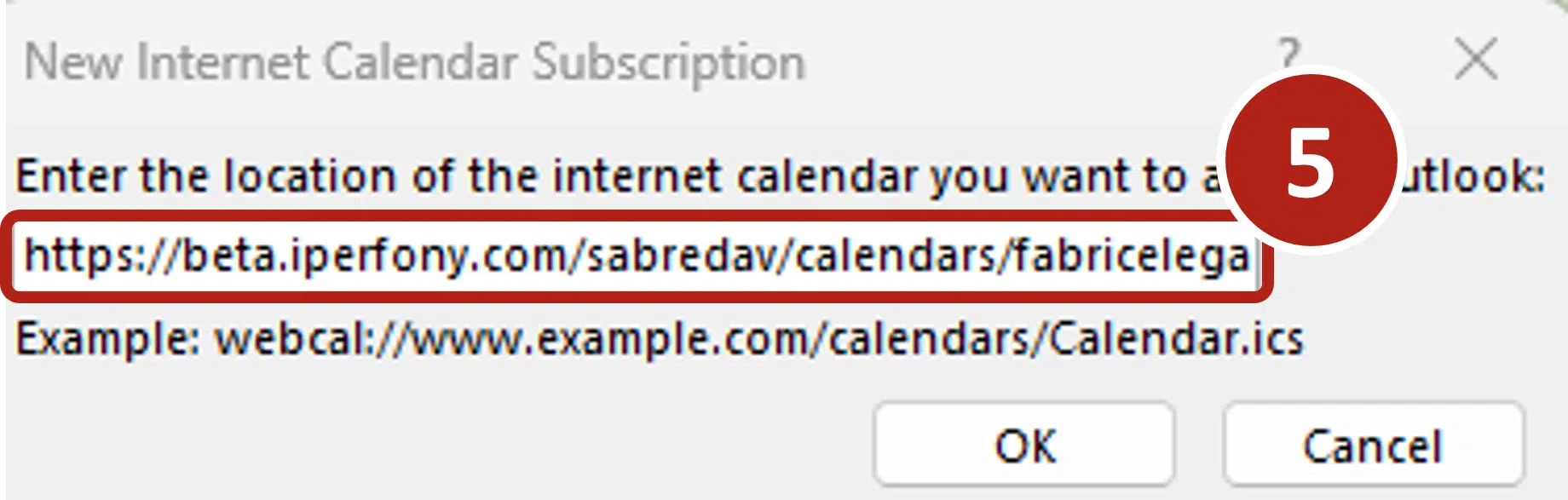
For more information, see Microsoft Support.
In Google Calendar
- Open Google Calendar.
- In the sidebar, click + next to Other calendars, then From URL.
- Paste the ICS link and confirm.
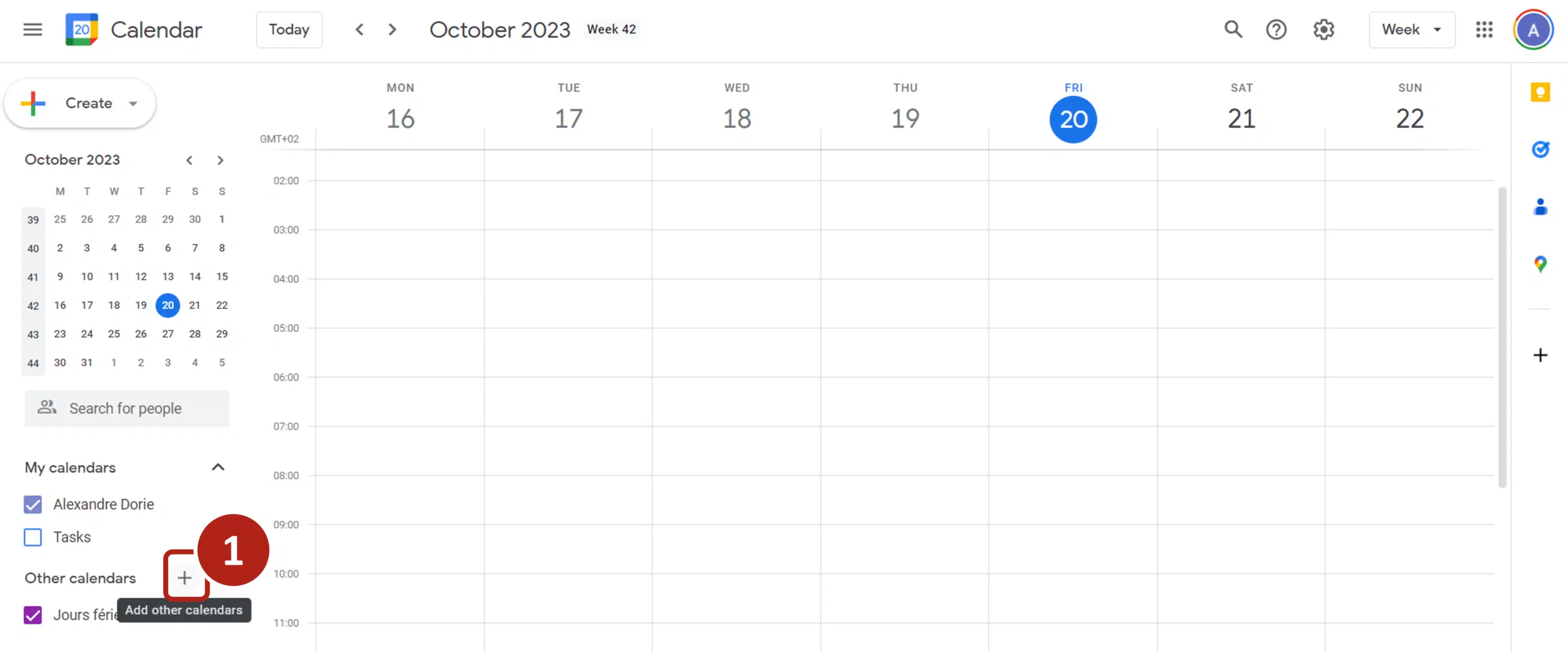
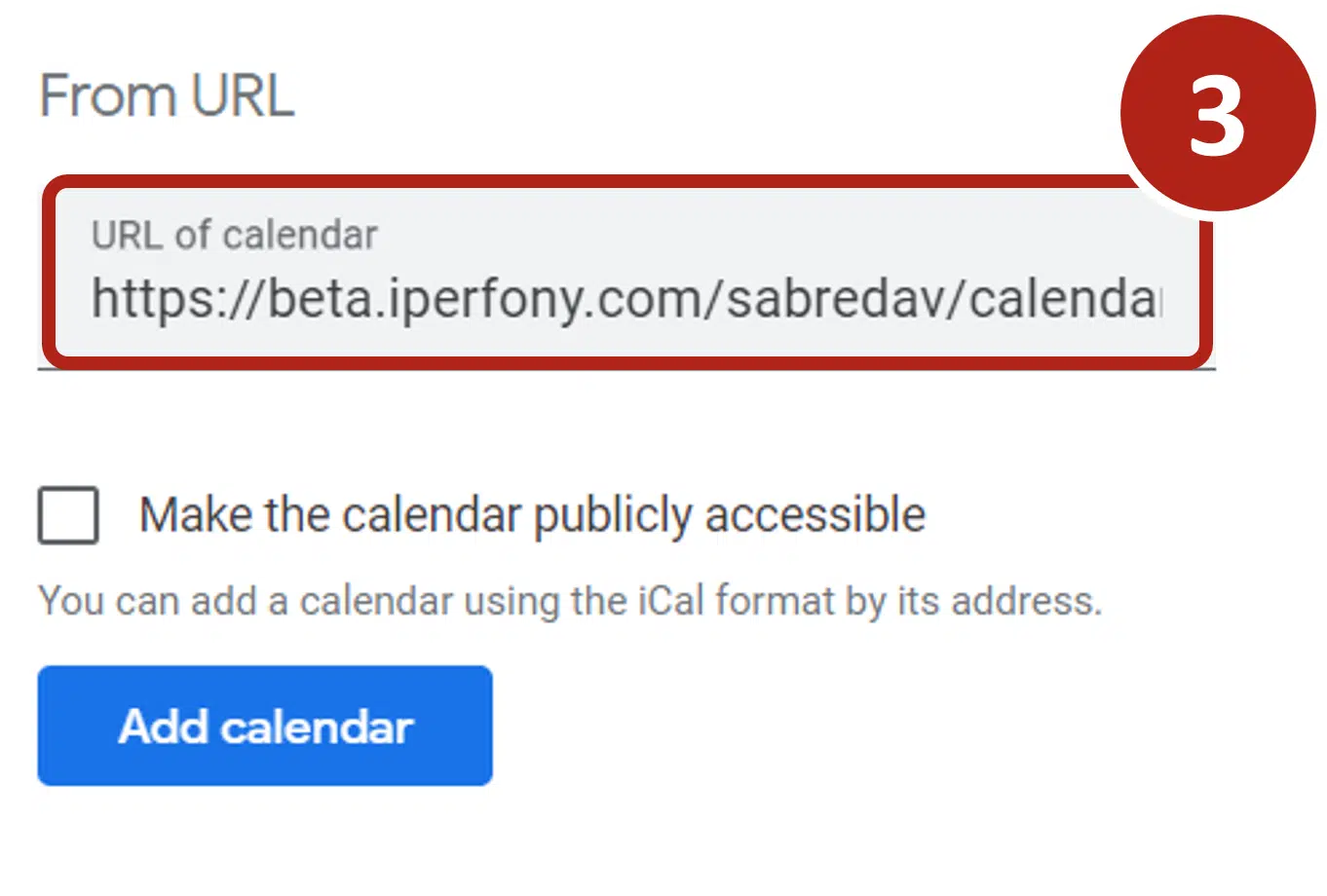
Synchronizing with a CalDAV client
In your calendar client, create a CalDAV account with:
- the address https://<your instance>/sabredav/calendars/<your user name>/perfony/;
- your e-mail and your Perfony password.
The login page rules apply: active account, password not expired, failed attempts counted.
On iPhone or iPad
- Open Settings, then Calendar > Accounts > Add Account > Other.
- Choose Add CalDAV Account.
- Enter the address above as the server, then your Perfony e-mail and password, and tap Next.
- Your meetings appear in Calendar and your actions in Reminders.
On Android
Android has no built-in CalDAV client: install a CalDAV app such as DAVx5 from the Play Store, then add an account with the address and credentials above. Your meetings then appear in the phone’s calendar.
Good to know
- An existing ICS subscription keeps working without any change.
- A CalDAV client set up without a password asks for your credentials at its next synchronization.
- You only see your own calendar, even with your credentials.