
How can we help?
Create Your Own Kanbans
What Is It For?
Kanban organizes tasks into columns. You can now create your own kanbans, with one column for each value of a custom field—for example, one column per project phase, per batch, or per site.
Dragging a card from one column to another changes the value of the field in the task. The change is recorded in the task’s history.
Before you begin
- The custom field must be a fixed list type and must not be dependent on any other field. Your group’s administrator creates these fields and adds them to the folder template (see the Groups menu).
- To move a card, you must have permission to edit the custom fields for that action.
Create a Kanban
- Open the folder, then the Kanban View tab. The Status kanban appears: it is always available and cannot be edited or deleted.
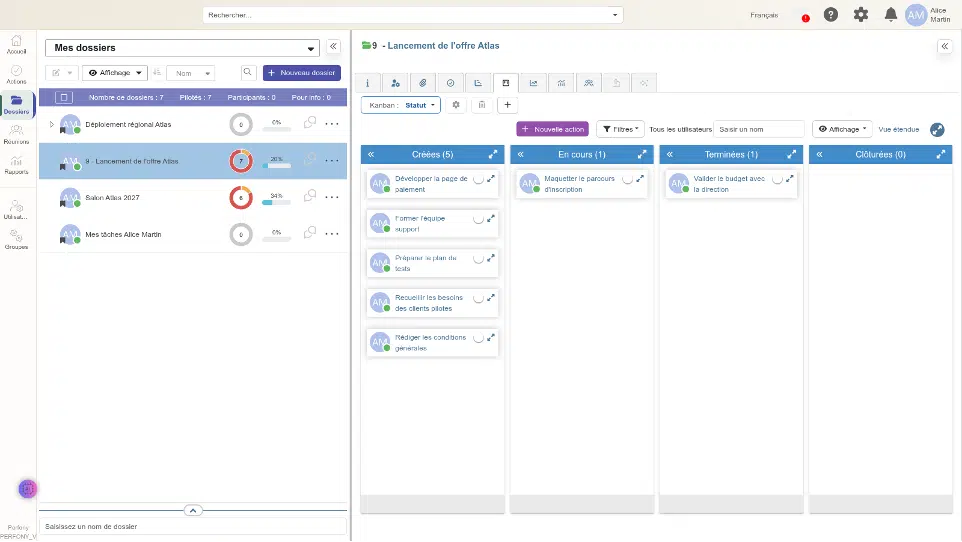
- Click + (“Add a Kanban”).
- Leave “Create a Kanban” checked, give the Kanban a name, and select the custom field.
- The list of columns appears: one for each field value, plus “Not Specified” for actions without a value. Uncheck a value to hide its column; drag a row to change the order of the columns.

- Click ” Add a Kanban.” The new Kanban appears.
Organize Tasks
Drag a card to another column: the value of the field changes in the action. The counter for each column updates.

If the card cannot be moved, a message explains why, and the card returns to its original position. This happens if the field is required (a card cannot be moved to “Not filled in”), or if you do not have permission to edit the action.
Switching Between Kanbans
The Kanban button : displays the current kanban. Click it to select a different kanban. Perfony remembers your last selection across sessions and on all your devices.

Filter and Customize the View
- Filters: by priority, overdue tasks, tracked tasks. Filters can be combined; the button shows how many are active. They are applied to each Kanban board.
- View: Include sub-tasks, completed tasks, and tasks from subfolders.
- Columns: Click “ « »” to collapse a column; drag its header to move it. Your layout is saved.

Edit, copy, or delete a kanban
- Gear icon: Rename the kanban, hide or reorder its columns. The custom field cannot be changed; to do so, create a new kanban.
- Copy: In another folder that has the same field, click +, then Copy an existing kanban.
- Trash: Deletes the kanban. Actions are not affected.
Good to Know
- Your kanbans are personal: your coworkers can’t see them and create their own.
- Kanbans are also available in My Actions (Actions menu, Kanban view), with the same features except for the copy function and the subfolder option.
- The Expanded View button displays the kanban across the full width of the screen.