
Perfony Agent for Microsoft 365 Copilot
AI & Data Protection
Perfony’s AI connectors are designed in compliance with the applicable requirements of the AI Act, the GDPR, and Perfony’s principles of security and transparency. To understand what data is accessible, how it is processed, and what controls you have, see: Artificial Intelligence in Perfony: Transparency, Data, and Control.
View, create and update your Perfony actions without leaving Teams. Just ask Copilot.
Before you start
- An active Perfony account. Create a free account
- Microsoft Teams with Microsoft 365 Copilot enabled in your organization.
- A Microsoft work or school account. Sign-in uses Microsoft Entra ID and works from any Microsoft 365 organization.
Purpose and audience
Perfony Agent is a Microsoft 365 Copilot agent published on the Microsoft Marketplace (listing “Perfony Agent”, publisher Perfony). It can be made available in two ways: deployed centrally by the customer’s Microsoft 365 administrator to all targeted users (option A), or installed individually by each user from the Copilot agent store (option B). This procedure describes both options; it is intended for the customer’s Microsoft 365 administrator and the Perfony project manager, who choose the right approach together.
What the agent lets you do, in a Copilot conversation (Teams, Microsoft 365 Copilot app, Outlook):
- List and filter your Perfony actions: overdue, due this week, by progress.
- Create an action (title, description, due date) and update its name, description, due date or progress, always after a summary and your confirmation.
- Prioritize and structure: priority recommendation (Eisenhower, impact/effort), breaking an action down into steps, compact view of the day’s or week’s workload.
The agent only handles the signed-in user’s actions; full management of folders and meetings remains in the Perfony application. It is the same for all customers: the user signing in with their Microsoft account is what links them to their Perfony account.
Two ways to install the agent
| Option A – Centralized deployment | Option B – Individual installation | |
|---|---|---|
| Who does it | The customer’s Microsoft 365 administrator | Each user, from Copilot |
| Scope | All targeted users or groups, agent pre-installed | Only the user who adds it |
| Required role | Global Administrator | None; the tenant must allow installing agents from external publishers |
| Microsoft Entra consent | Granted once for the whole organization during deployment | Granted by the user at first sign-in, or by an administrator if the tenant does not allow user consent |
| Lead time | Up to 24 hours to propagate | Immediate |
| Control | The administrator adds, removes or blocks users and tracks updates | The administrator can only block the agent for everyone; each user manages their own installation |
| Recommended for | Rolling out to a team or the whole organization | Trials, small teams, tenants that let users install their own agents |
The two options can be combined: a few users can try the agent individually, then the administrator deploys it to everyone without those already set up having anything to do. In a tenant that blocks third-party apps by default, only option A works without any action from the user.
Customer prerequisites
The customer must be on Microsoft 365 with Copilot Chat available to its users; no other technical prerequisite is required.
| Prerequisite | Details |
|---|---|
| Subscription | Microsoft 365 Business (Basic, Standard, Premium), Office 365 E1/E3/E5/F3 or Microsoft 365 E3/E5/F3, with Copilot Chat available to users (enabled by default) |
| Administrator role | Global Administrator (option A) to deploy a multi-host Marketplace app (Teams, Copilot, Outlook) from Integrated apps; an Entra Application Administrator can then change its assignment |
| Microsoft Entra consent | On first use, each user signs in with their Microsoft account and accepts two permissions: reading their profile (name, email) and access to the Perfony API on their behalf. If the tenant does not allow user consent, a Global Administrator grants consent for the organization when they first sign in |
| Targeted users | Top-level accounts or groups (Microsoft 365 group, mail-enabled security group or distribution list). Nested groups are not supported |
| Applications | Teams (desktop, web, mobile), Microsoft 365 Copilot app (desktop and web), Outlook (new Outlook and Outlook on the web) |
| Teams policy | The agent must be allowed in the Teams admin center (third-party apps allowed, or “Perfony Agent” explicitly allowed if third-party apps are blocked by default) |
| Installation by users (option B) | In the Microsoft 365 admin center, Agents > Settings: agent access must allow agents from external publishers, and user access must include the relevant users (default: all). Otherwise, the agent does not appear in the store or cannot be added |
| Network | Outbound HTTPS access to Perfony services from Microsoft servers; nothing needs to be opened on workstations beyond Microsoft 365 |
Microsoft source: Apps for Microsoft 365 that work across application hosts.
Perfony prerequisites
No configuration is needed on the customer’s instance. Before starting the deployment, the Perfony project manager checks the following points.
| Item to check | Expected value | Why |
|---|---|---|
| User accounts | One active Perfony account per user, with the same email address as the Microsoft 365 account | The agent identifies the user by the email address of their Microsoft account and automatically finds their Perfony instance |
| Unique address | The address exists in only one Perfony instance | If an address is known to several instances, the agent connects to the first one found; report the case to Perfony before deployment |
| User profile | Any profile: the agent only creates and edits the signed-in user’s actions | No specific permission to grant |
Listing to give the customer’s Microsoft 365 administrator: Perfony Agent, publisher Perfony, Microsoft 365 Copilot category, on the Microsoft Marketplace.
Perfony Agent on the Microsoft Marketplace
Option A – Centralized deployment in the Microsoft 365 admin center
Deployment takes about ten minutes; the agent then appears for users within 24 hours at most, usually within a few hours. We recommend a two-step rollout: a pilot group, then all Perfony users.
Unlike the Outlook add-in, the agent also works fully when a user installs it themselves (option B, next section). Centralized deployment is used to pre-install it for all targeted users, grant consent once for the whole organization and keep control over it.
- Sign in to https://admin.microsoft.com with a Global Administrator account.
- In the left menu, open Settings then Integrated apps.
- Click Get apps: the Microsoft Marketplace opens in the admin center.
- Search for Perfony and open the Perfony Agent listing (publisher Perfony.com, Microsoft 365 Copilot category). Do not confuse it with “Perfony for Outlook” (add-in) or “Perfony – Tasks & Projects Manager” (Teams app).
- Click Get it now, accept the terms, then Continue.
- The deployment screen summarizes the app and its host products (Microsoft 365 Copilot, Teams, Outlook). Click Deploy then Next.
- In Add users, choose:
- Just me for a first test by the administrator,
- Specific users/groups for the pilot group, then the group of Perfony users (top-level group, see prerequisites),
- Entire organization only if all employees use Perfony.
The same group as for the Outlook add-in can be reused (for example “Perfony – users”).
- Click Next. The Accept permissions requests page lists the agent’s permissions: user sign-in and reading their profile, access to the Perfony API on their behalf. Click Accept permissions: this consent applies to the whole organization, so users will no longer have to grant it individually.
- Click Next, review the summary, then click Finish deployment.
- The “Perfony Agent” agent appears in the Deployed apps list. It is also visible in Agents > All agents in the admin center, where the Users tab lets you review the assignment.
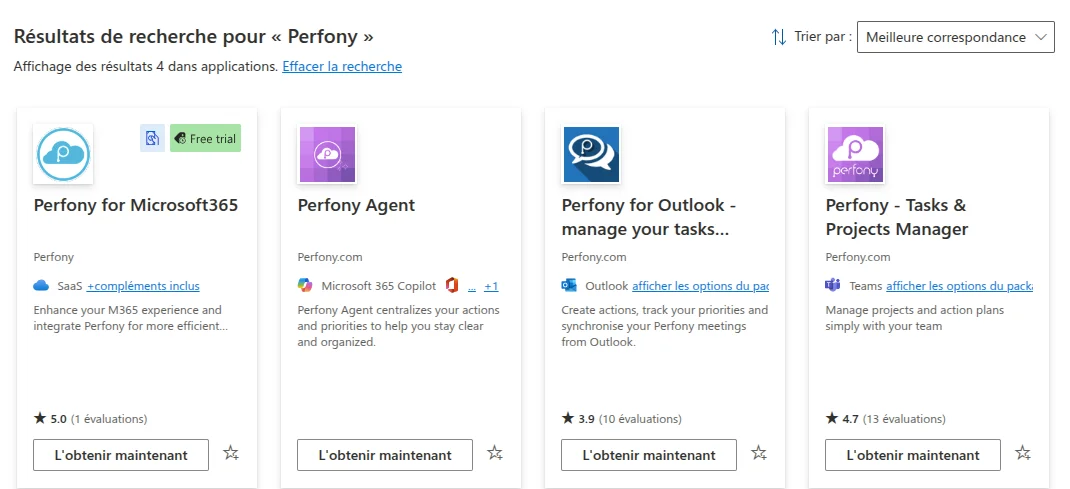
Checking Teams: deployment from Integrated apps covers Copilot and Outlook; display in Teams follows the Teams admin center rules. In https://admin.teams.microsoft.com, go to Teams apps > Manage apps, search for Perfony Agent and check that it is Allowed; if third-party apps are blocked by default in the tenant, allow it explicitly and add it to the permission policy of the relevant users. In tenants that have moved to unified app management, this check is done directly in the Microsoft 365 admin center.
Once the pilot group is validated (next section), go back to the Perfony Agent row in Integrated apps, Users tab, then Edit users to extend it to the full group and click Update.
Option B – Individual installation by the user
Each user can add the agent themselves from the Copilot agent store, without any action from the administrator. The agent is then installed for them only and available immediately.
What the administrator checks beforehand, once for the tenant, in https://admin.microsoft.com, Agents > Settings:
- Agent and plug-in access: agents and plug-ins created by external publishers are allowed; otherwise Perfony Agent does not appear in the store.
- User access: All users (default) or a group that contains the Perfony users.
- Perfony Agent is not blocked in Agents > All agents, nor in the Teams admin center if the tenant blocks third-party apps by default. A blocked agent remains visible in the store, but the Add button is replaced by Request: the request goes to the administrator, who approves it in Agents > Requests (or Manage apps in the Teams admin center).
Steps for the user
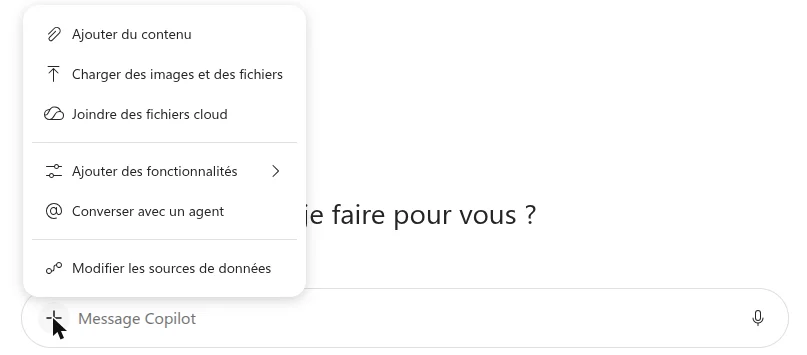
- Open Teams, click Copilot in the sidebar, then + in the message box and Chat with an agent.
- At the bottom of the list, click Get agents (or All agents): the agent store opens.
- Search for Perfony, open the Perfony Agent listing (publisher Perfony, Built by partners tab) and click Add.
- The agent opens straight away in Copilot: ask a first question, for example “List my actions”, then click Sign in to Perfony Agent (see next section).
- From the Microsoft 365 Copilot app or Outlook, the same path goes through Agents > All agents, the Perfony Agent listing, then Add.
Consent: at first sign-in, Microsoft asks the user to accept reading their profile and access to the Perfony API on their behalf. If the tenant does not allow user consent for third-party apps, the message “Admin approval required” is displayed: a Global Administrator then grants consent once for the organization, either by signing in to the agent themselves or in Microsoft Entra > Enterprise applications > Perfony. Subsequent users have nothing to accept.
Limitations: the agent is only installed for the person who adds it; the Users tab in the admin center only lists option A assignments, and the administrator can only block the agent for the whole organization. If the customer later moves to option A, the centralized deployment is added with no action from users who are already set up.
First use and verification
The reference test is the user’s list of actions: if the agent returns it, the Microsoft sign-in, the link to the Perfony account and access to the instance are all validated. To be done by a pilot group user after the propagation delay (option A), or by the user as soon as they have added the agent (option B).
First sign-in (once per user)
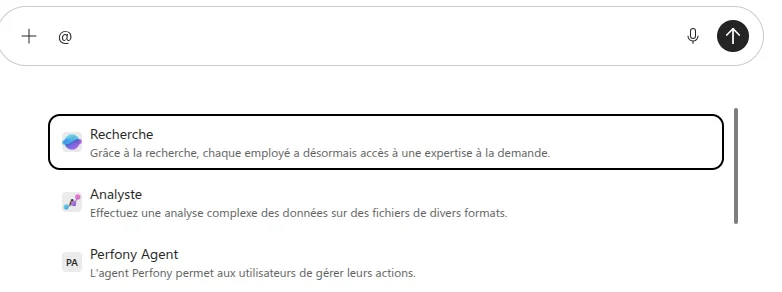
- Open Teams, click Copilot in the sidebar, then + in the message box and Chat with an agent; choose Perfony Agent from the list (see the next section for other ways in).
- Click one of the conversation starters, for example “List my actions”, or type the question.
- The agent replies “Please sign in to Perfony Agent to continue” with a Sign in to Perfony Agent button: click it and choose your Microsoft work account.
- If the agent was installed individually (option B), or if the administrator did not grant consent for the organization at step 8 of the centralized deployment, Microsoft displays the permissions request (profile reading, access to the Perfony API): click Accept.
- The agent replies with the user’s list of actions. The sign-in is remembered for future conversations.

Full verification
- “What are my overdue actions?”: the agent displays a compact table (title, due date, progress) with an Open in Perfony link for each action.
- “Create an action: prepare the client meeting, due 12/15/2026”: the agent summarizes and asks for confirmation before creating it. Confirm, then check in Perfony (web application) that the action appears in the user’s To do list.
- “Set the progress of this action to 40%”: after confirmation, the progress is updated in Perfony.
- Counter-check: a user without a Perfony account opens the agent; after the Microsoft sign-in, the agent states that no Perfony account matches their address.
Expected result to validate the deployment:
- ☐ Perfony Agent visible in the Copilot agent list (Teams)
- ☐ Microsoft sign-in and consent accepted without errors
- ☐ List of actions returned, “Open in Perfony” links working
- ☐ Creating and updating an action reflected in Perfony
Where to find Perfony Agent in Copilot
The agent appears on its own after the centralized deployment, or as soon as the user adds it, in the agent list of each Copilot application. It is not visible in the general Copilot chat until it has been selected or mentioned.
| Application | Where to look | Tip |
|---|---|---|
| Teams (desktop, web) | Copilot sidebar, then + in the message box and Chat with an agent: Perfony Agent. Otherwise, Apps then search for “Perfony Agent” | In a Copilot conversation, type @Perfony Agent followed by the question |
| Teams (mobile) | Copilot in the bottom bar, then the agents icon at the top right | Conversation starters appear when it opens |
| Microsoft 365 Copilot app (desktop, m365.cloud.microsoft) | Left pane Agents: Perfony Agent. Otherwise All agents then search | Pin the agent with a right-click to keep it at the top of the list |
| New Outlook and Outlook on the web | Copilot button in the ribbon, then the agent list in the Copilot pane | Handy to create an action from an email: copy the subject into the request |
| Agent store (all applications) | Get agents or All agents, Built by partners tab, search for “Perfony” | Path for individual installation (option B); after a centralized deployment, the agent already shows as installed |
Tips to pass on to users:
- The first question triggers the Microsoft sign-in (Sign in to Perfony Agent button); this is normal and happens only once.
- The agent only sees the signed-in person’s actions; for folders and meetings, it points to the Perfony application.
- Dates are given without a time, in the usual day format (12/15/2026); progress is saved in 20% steps.
- If the agent does not appear on the day of deployment, fully close Teams and restart it the next day.
Troubleshooting
| Symptom | Likely cause | Action |
|---|---|---|
| The agent does not appear in the agent list | Propagation in progress; user outside the targeted group; nested group; Teams not restarted | Wait 24 hours, check direct group membership in Integrated apps > Users, restart Teams |
| Perfony Agent missing from the agent store (option B) | Agents from external publishers disabled in the tenant, or user outside the user access setting | Microsoft 365 admin center, Agents > Settings: allow agents from external publishers and check user access |
| Request button instead of Add in the store (option B) | Agent blocked, or third-party apps blocked by default in the tenant | Approve the request in Agents > Requests, or allow Perfony Agent in Manage apps (Teams); or switch to option A |
| The agent appears in Outlook or the Copilot app but not in Teams | App blocked or not allowed in the Teams admin center | Manage apps, allow Perfony Agent and check the users’ permission policy |
| No Copilot button in Teams | Copilot Chat disabled for the user or the organization | Check the Copilot settings in the Microsoft 365 admin center (Settings > Copilot) |
| The Sign in button does nothing or loops | Sign-in window blocked (pop-up blocker on Teams web), or Microsoft session expired | Allow pop-ups for teams.microsoft.com, or sign out of Teams and sign back in |
| “Need admin approval” at sign-in | The tenant does not allow user consent and the administrator has not accepted the permissions (option B, or option A without step 8) | A Global Administrator signs in to the agent once and accepts the permissions for the organization, or grants them in Microsoft Entra > Enterprise applications > Perfony |
| Sign-in succeeds but “no Perfony account” or access denied | Microsoft account address different from the Perfony account address (alias, former domain), or inactive Perfony account | Align the Perfony account address with the primary address of the Microsoft account, or activate the account |
| The agent shows actions from another instance | Email address present in several Perfony instances | Report it to Perfony, who will remove or rename the duplicate |
| The agent replies with no data or “I can’t access your actions” | Incident on the Perfony side or expired token | Try again; if the error persists, check that the Perfony application responds, then contact Perfony support |
| “Saved” priority not found in Perfony | Normal behavior: the priority suggested by the agent is advice, only the due date is saved | None |
For in-depth diagnosis, the Perfony team may ask for the user’s email address, the time of the attempt and a screenshot of the agent’s reply.
Updates and uninstallation
Routine updates: nothing to do on the customer side. The agent is hosted by Perfony; changes to the API and replies take effect immediately, and new versions of the listing published by Perfony on the Marketplace are deployed automatically.
Exception: if a new version requires an additional permission, the Perfony Agent row in Integrated apps changes to Update pending status and the administrator must accept the changes from the management pane; Perfony then notifies the customer.
Adding or removing users (option A): Integrated apps > Perfony Agent > Users tab > Edit users, or simply change the members of the group used for the deployment. A removed user loses the agent the next time Teams starts.
Blocking temporarily: Integrated apps > Available apps, select Perfony Agent, Block app. Blocking applies to Copilot and Outlook; for Teams, also block the app in the Teams admin center.
Removing an individually installed agent (option B): the user does it themselves in Teams, Apps > Manage your apps, Perfony Agent row, Uninstall (or right-click the agent then Remove in the Microsoft 365 Copilot app). Blocking by the administrator, above, also removes the agent for users who had added it themselves. Listing updates are applied automatically in both options.
Full uninstallation: Integrated apps > Deployed apps, select Perfony Agent, Remove app, accept the terms then Remove. Actions created in Perfony are kept. The consent granted to the Perfony application in Microsoft Entra can be removed separately (Enterprise applications > Perfony > Properties > Delete).
Microsoft source: Apps for Microsoft 365 that work across application hosts.