How can we help?
Getting to grips with the audit function
Stock audit
In a folder with “audit” functionality enabled, an “auditor” button appears for each folder participant.
This feature enables an “audit flow” to be set up between auditors and auditees.
- An Executive license is required to add/remove the auditor role from a user,
- To be an auditor, you need to have at least a pilot’s license and be a pilot or alternate pilot on a dossier,
- An Executive license will enable you to be a participant in a file and an auditor.
You can find out who is listening to a file directly from the “Participants” tab:

Actions in the “My folders” menu
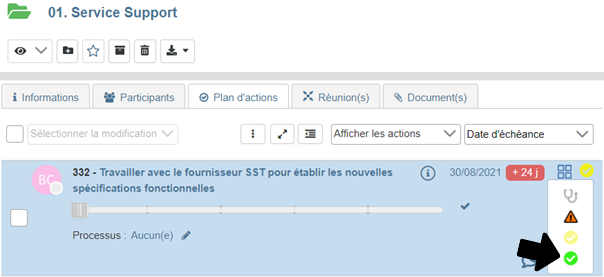
An auditor can trigger the audit of one or more actions by clicking on the appropriate icon. By default, 3 icons are integrated:
 This pictogram indicates a point of vigilance. A risk/defect has been reported/observed.
 This pictogram indicates that the requested correction has been made by the auditee and is awaiting validation by the auditor.
 This pictogram means that the correction has been validated, and the audit has been successfully completed.
The auditee is responsible for the action, and sees the icon at the end of the action, as well as the set of icons in the drop-down menu:
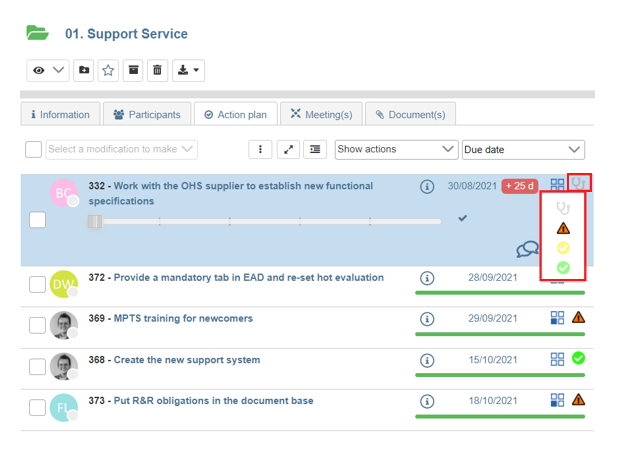
This action opens the “audit” tab in the action, enabling a confidential dialogue between the auditor and the auditee (content invisible to other participants who are not auditors of the file):
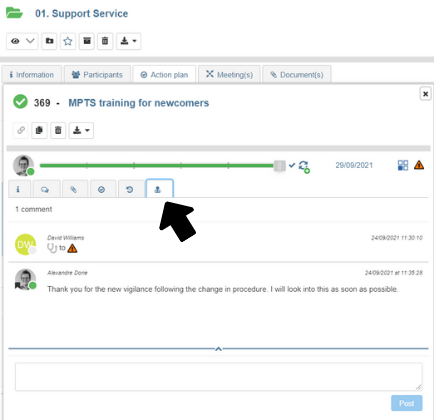
PS: A new status or comment is displayed by a red dot on the “Audit” tab, and an email alert stream is also available.
Once the auditor has triggered the alert pictogram, the auditee then has the option of changing the audit status to “audit processing”. However, the auditor can select and return to any audit status, whereas the auditee can only select “audit processing” status once the action has been flagged.
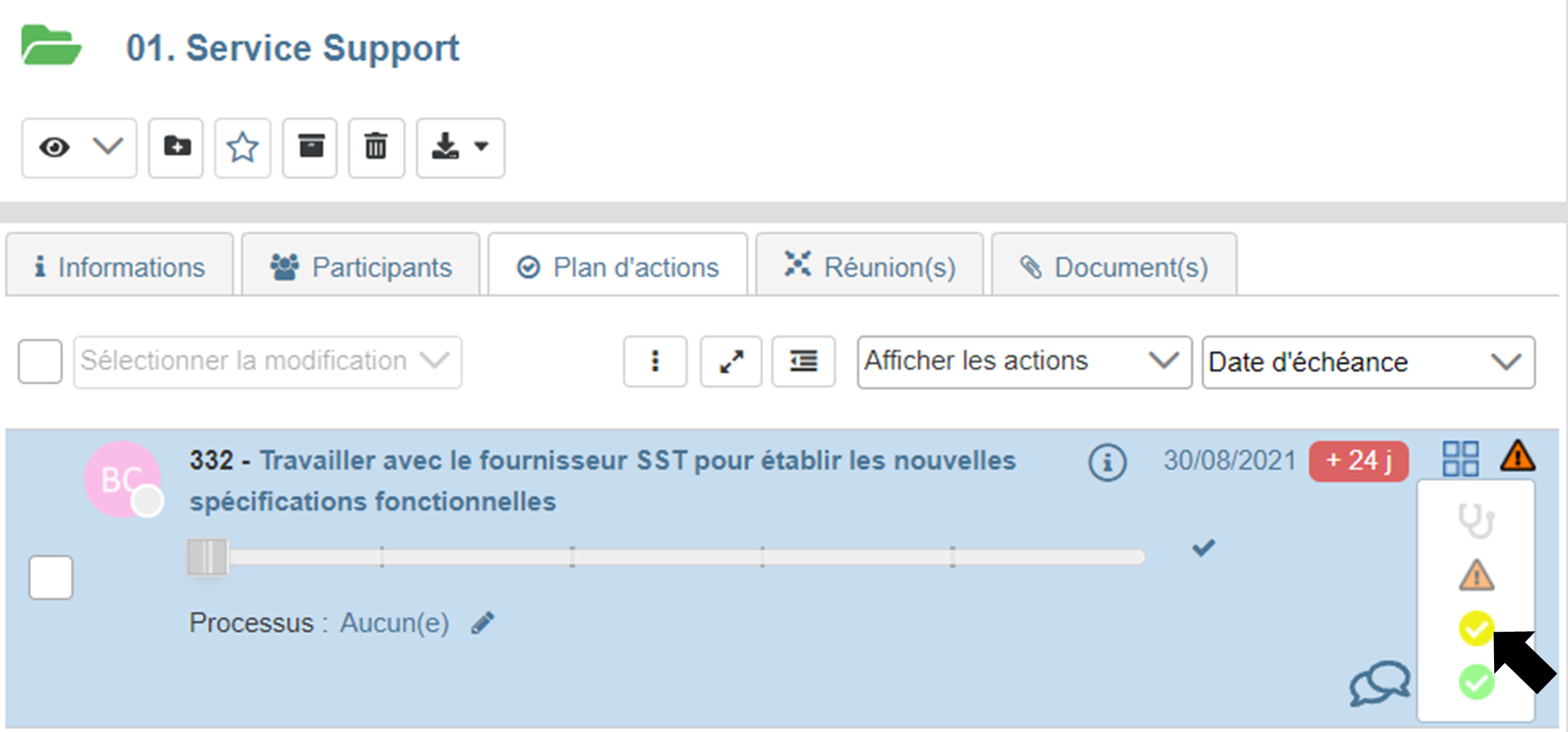
Only the auditor can change the status of the audit to “audit validated”:
In the “My actions” menu
For the auditor and the auditee, a specific list of all audited actions is available:
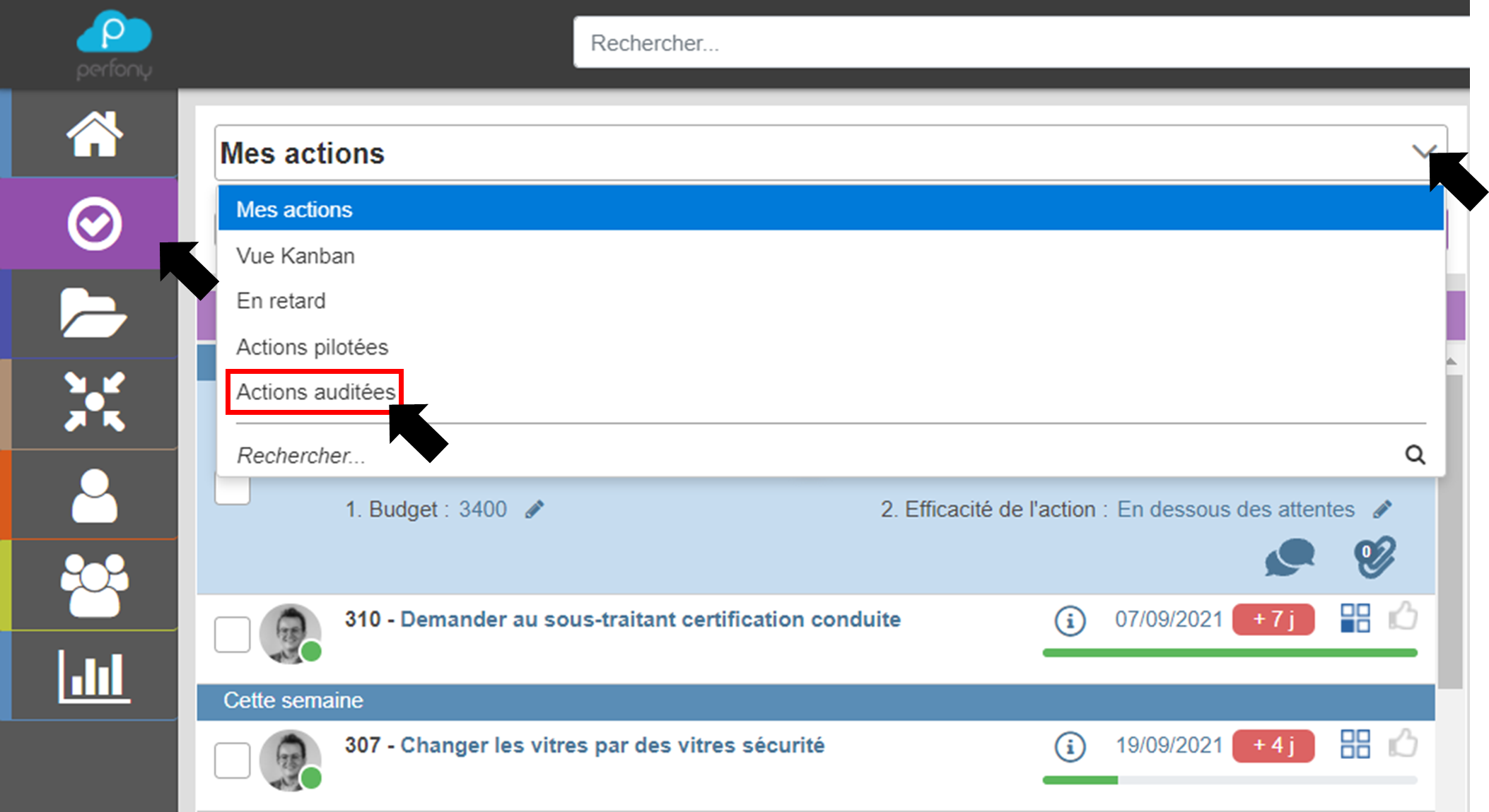
PS: An Excel export of audited actions is available.
Dashboard level
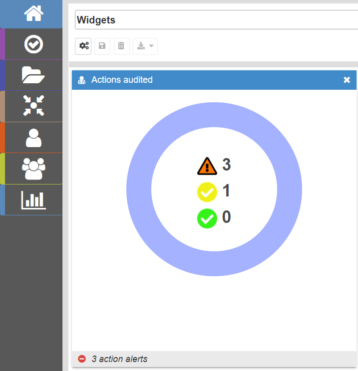
On the “Widgets” page, auditors and auditees have a visual indication of the number of actions audited by status, and a click takes you to “my audited actions”.