
How can we help?
Use the cause analysis function
Display the cause analysis tab in your folder
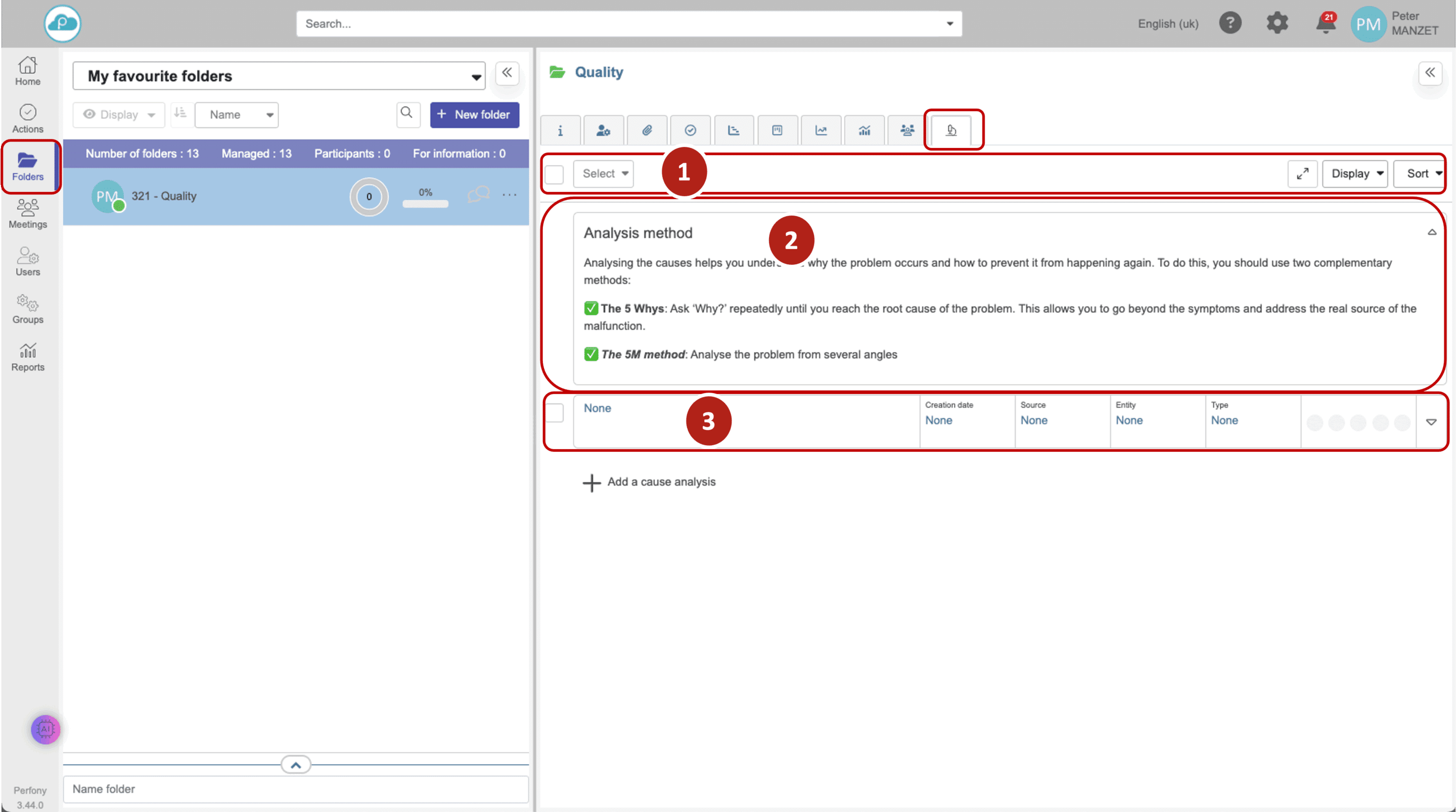
When the option is activated in the folder template, a new Cause Analysis tab appears in your folders that use this template.
This tab is divided into :
- A management panel (selection, export, sorting)
- A method display zone
- Cause analysis blocks (one block per non-conformity)
Completing a cause analysis block
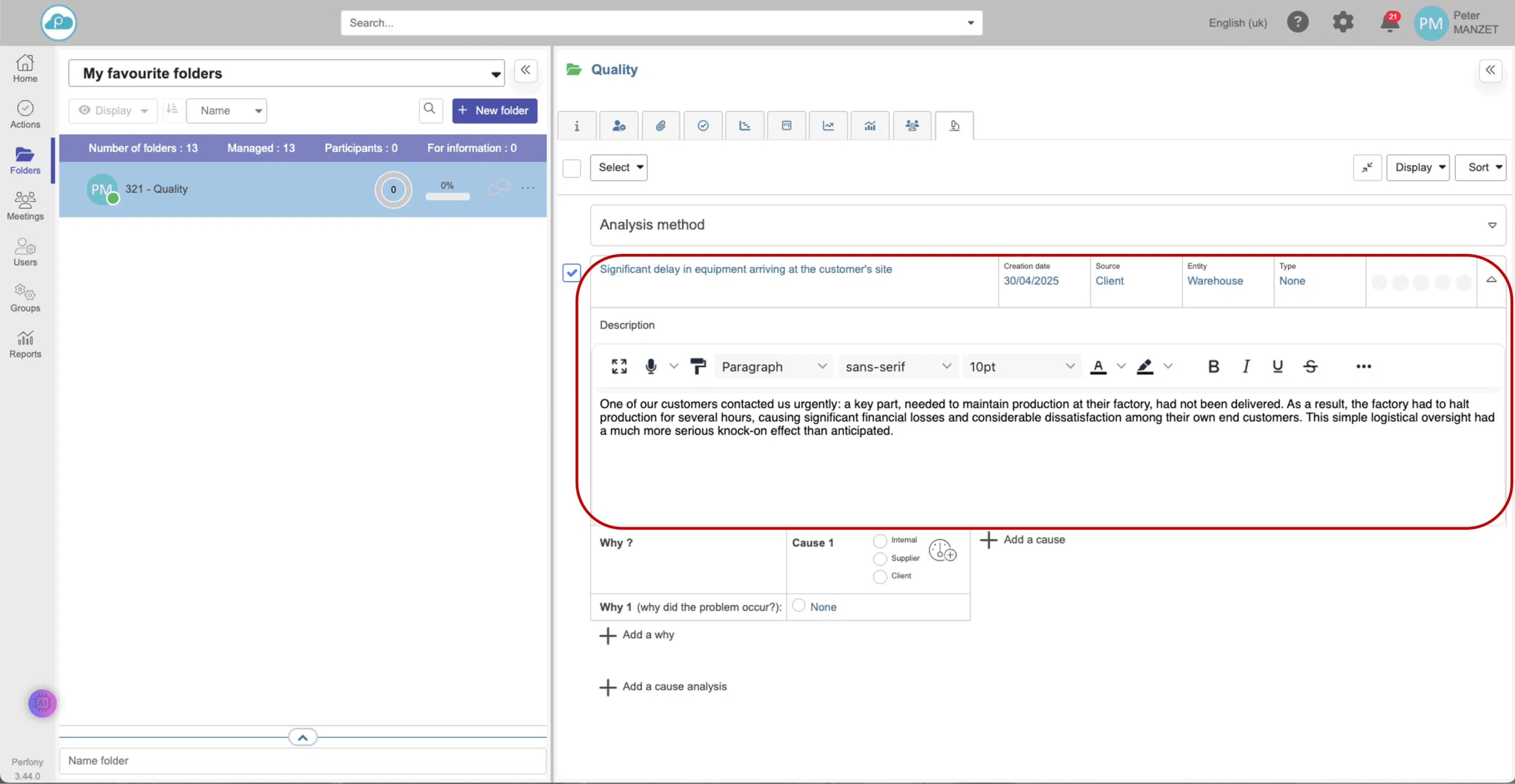
The cause analysis block contains various items of information that will enable you to carry out the cause analysis method to identify the root cause and corrective actions, as well as grouping data together for further analysis.
Each block contains the following information:
- Title
- File creation date
- Date of incident
- Source
- Entity
- Department
- Type
- Amount
- Liability
- Description
The “Amount” field is a numerical value.
The “Responsibility” field is fed by the analysis of causes (see below).
Tip Perfony 🚀 : You can customize the drop-down menus for “Source”, “Entity”, “Service” and “Type”.
Search for the root cause (5 Why)
Below the description, you’ll find the first “Why” field.
- Fill in the first cause
- If necessary, click on + Why to drill down to the root cause

Determining responsibility
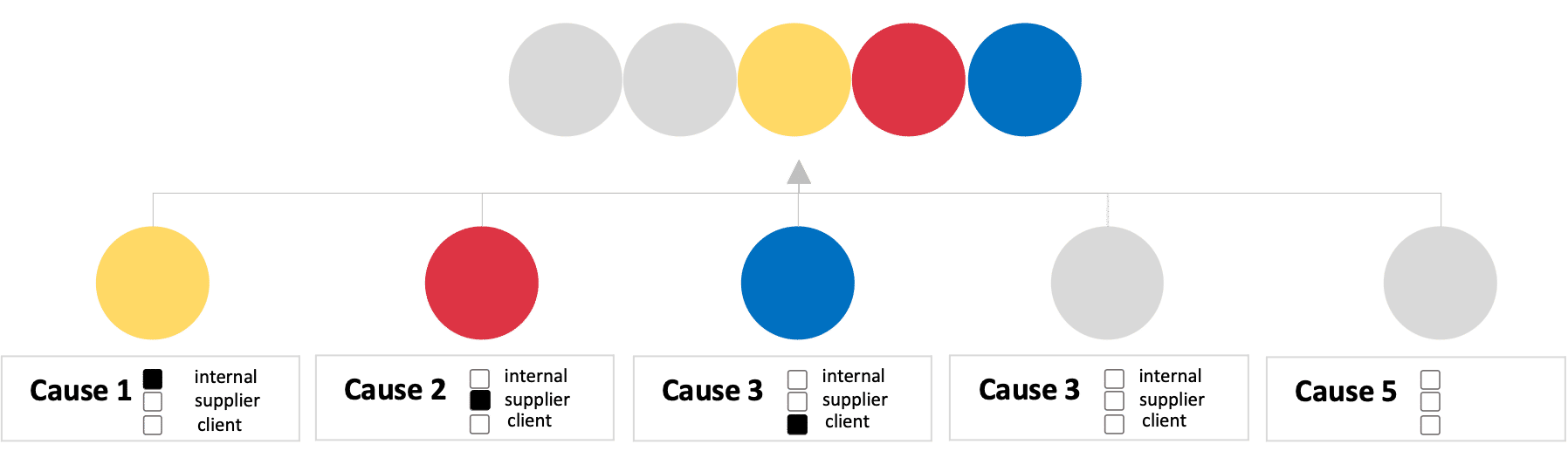
Associate each cause with a responsibility:
- Internal
- Supplier
- Customer
A visual indicator (dots) summarizes the distribution.

Calculate the criticality of a cause
When you click on the criticality calculation icon, Perfony proposes an automatic calculation based on 3 criteria:
- Gravity
- Frequency of occurrence
- Existence of preventive measures
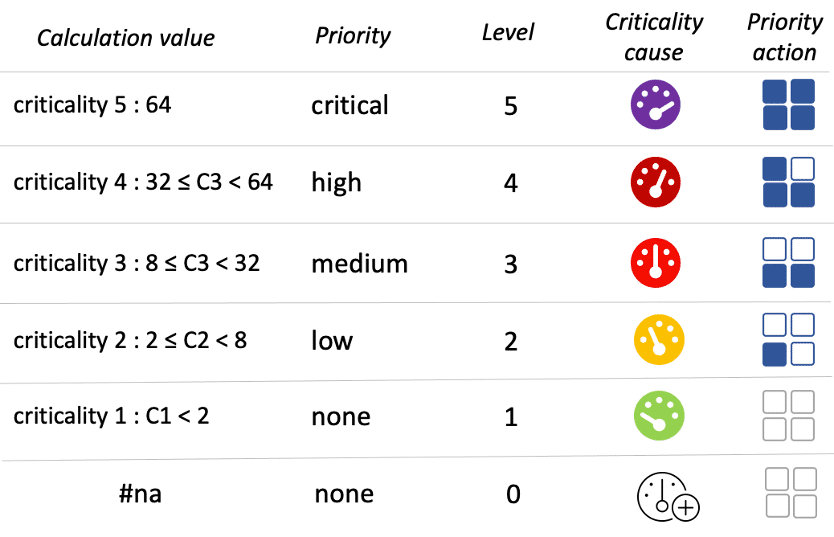
The criticality level determines the priority of corrective action:
| Criticality | Priority | Action |
| 1 | No | Maintain as is |
| 2 | Low | Light actions during the year |
| 3 | Average |
Reduction actions during the year |
| 4 | Strong | Rapid corrective action (6 months) |
| 5 | Review |
Immediate actions (1 month) |
The details of the scales are explained in the article: Understanding the calculation of cause criticality.


Depending on the result, the icon takes on the appropriate color.
The criticality of the cause will directly influence the priority of the corrective action according to the following table:
Create a corrective action
- Validate the root cause identification by clicking on the button to the left of the cause.
- In the field below, click on Create corrective action
- Fill in the action form
The action will appear:
- In the Cause analysis block
- In your classic views (list, kanban, Gantt)


Add several causes
You can link several causes to the same non-conformity (in particular using the 5M method).
- Click + Cause to add a new one
Manage the implementation and evaluation of corrective actions
- Follow-up of the action as for any classic action (person in charge, progress…)
- Evaluation of effectiveness by the project manager once the action has been completed
- Available statuses: to be assessed, effective, ineffective
Archive and export your analyses
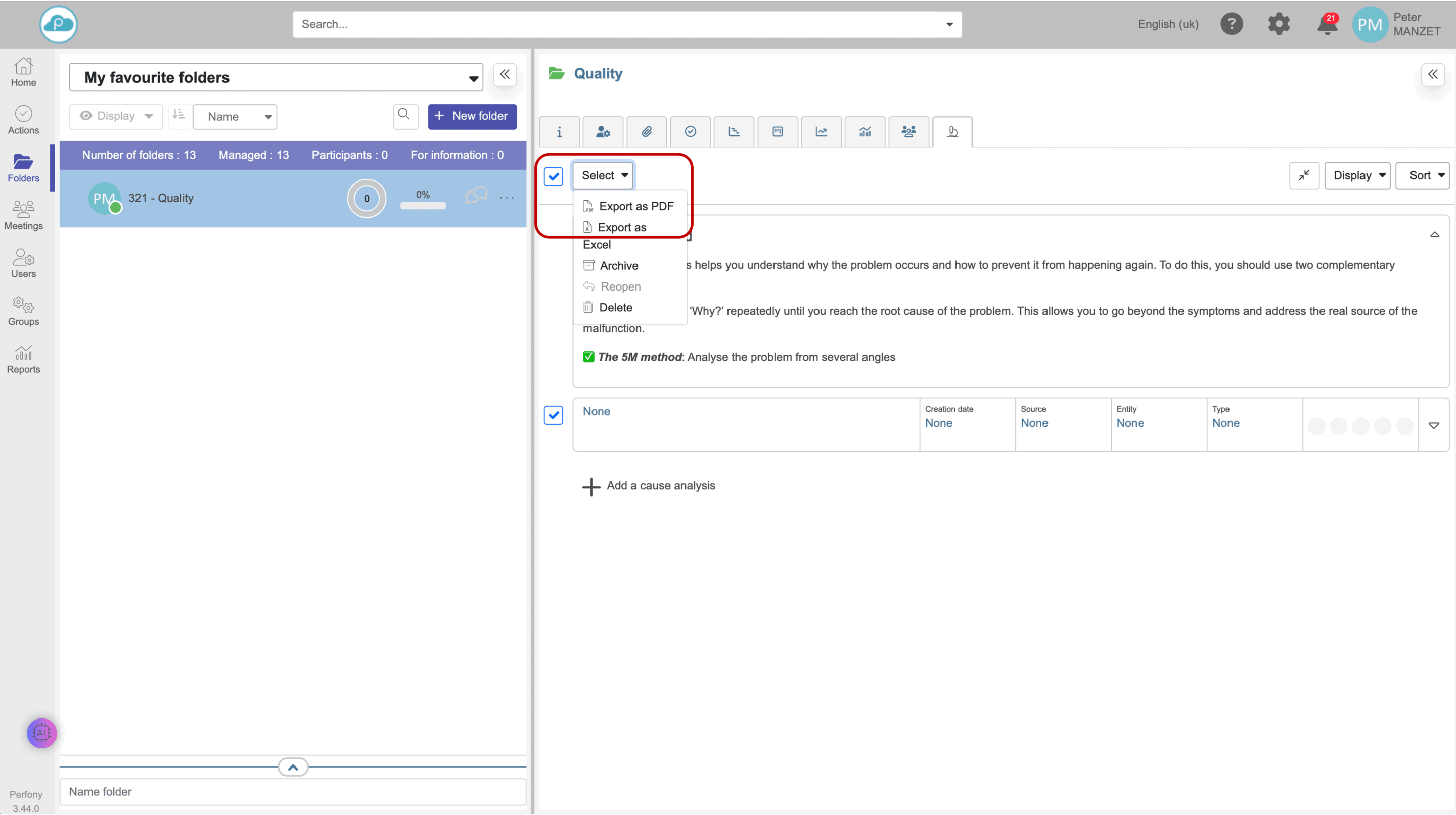
- Archive a cause analysis: select > Drop-down menu > Archive
- Export your data: select > Drop-down menu > Export .pdf or .xls
Tip Perfony 🚀 Export allows you to keep a record of your results or share them with other teams.
In a nutshell
With its Cause Analysis functionality, Perfony offers you a complete approach to :
- Identify the root causes of your problems
- Permanently correct your non-conformities
- Improve your quality performance
Act on the real causes, not the symptoms!